
How to set up a POS terminal cash register for your store?
- 1. How do I configure EMV/chip & contactless payments so my POS terminal cash register minimizes declines and liability risk?
- 2. How do I migrate SKUs and inventory to a new POS terminal cash register across multiple stores without creating stock mismatches?
- 3. How can I configure offline mode and automatic reconciliation so my POS terminal cash register keeps taking payments and syncs cleanly after internet outages?
- 4. How do I secure my POS terminal cash register to meet PCI DSS and reduce malware/skimming risk without expensive audits?
- 5. How do I integrate barcode scanners, receipt printers, and retail scales with an Android or cloud POS terminal cash register reliably?
- 6. How do I configure tax rules, mixed discounts, and bundled items in my POS terminal cash register so reporting and margins remain accurate?
How to Set Up a POS Terminal Cash Register for Your Store: 6 Advanced Beginner Questions Answered
Setting up a modern POS terminal cash register goes beyond plugging in hardware. This article answers six specific, pain-point-oriented questions beginners frequently search for but rarely find thorough solutions to: EMV/contactless onboarding, multi-location SKU mapping, offline-sales reconciliation, PCI security hardening, hardware peripheral integration, and complex tax/discount rules. The guidance below emphasizes cloud POS vs on-prem trade-offs, payment gateway and merchant account concerns, inventory management, and real-world integrations with receipt printers, barcode scanners and scales.
1. How do I configure EMV/chip & contactless payments so my POS terminal cash register minimizes declines and liability risk?
Why this matters: Beginners often face sudden declines after turning on an EMV reader or assume plug-and-play. Real issues are typically merchant account/gateway misconfiguration, unsupported card types, or outdated card terminal firmware.
Step-by-step:
- Choose the right terminal: Select an EMV-certified terminal (Ingenico, Verifone, PAX, or PCI PTS-certified PIN pads). For contactless/NFC, verify the terminal firmware supports EMV Contactless and Pure NFC (ISO 14443).
- Obtain a merchant account and payment gateway that support EMV and tokenization: Many acquirers require an EMV profile from the gateway to enable chip flow. Confirm your PSP supports both EMV and your terminal brand.
- Update terminal firmware and keys: Before going live, update terminal OS/firmware to the latest release from the vendor. Ensure EMV kernels and acquirer keys (AID/RID) are current—old kernels can cause unexpected declines.
- Enable the correct processing mode: Decide between integrated (POS sends tokenized payment info to gateway) or stand-alone (terminal performs auth and returns a reference). Integrated payments reduce PCI scope but require proper API/webhook configuration.
- Test all payment flows: EMV chip insert, contactless tap, magstripe fallback, and card-not-present tokenized transactions. Use test cards from the gateway/acquirer and check decline codes in logs.
- Set up automatic settlement and batch reconciliation: Confirm the terminal/gateway posts settlements to your acquirer at expected intervals (daily or on-demand) and that totals match POS sales batches.
- Monitor and tune: Track decline reason codes (AVS mismatch, CVV failure, insufficient funds, issuer block). Work with your PSP to whitelist legitimate BIN ranges (e.g., corporate cards) if needed.
Key tip: EMV reduces fraud liability but only if terminal kernels, acquirer profiles, and merchant settings are aligned. Always coordinate terminal firmware updates with your PSP and perform end-to-end tests before switching over.
2. How do I migrate SKUs and inventory to a new POS terminal cash register across multiple stores without creating stock mismatches?
Why this matters: Migrating product catalogs is a common pain point; naive CSV imports cause duplicated SKUs, incorrect stock counts, and reconciliation nightmares across locations.
Step-by-step:
- Audit current data first: Export existing SKUs, barcode numbers (UPC/EAN), product names, variants, costs, and current stock by location. Identify duplicates and normalize naming conventions.
- Establish your SKU schema: Use a stable, concise SKU format and retain UPC/EAN as primary identifiers. For bundles or modifiers, decide between composite SKUs (single SKU for a bundle) or parent-child relationships (master SKU with child SKUs).
- Clean and deduplicate: Remove inactive SKUs, consolidate near-duplicates, and standardize unit of measure (UOM). Resolve negative quantities and flagged discrepancies before import.
- Choose import method: Many cloud POS systems accept structured CSV imports (headers for SKU, name, price, cost, location stock). Use the POS vendor's sample template to avoid field mismatch.
- Perform a staged import: Import product master records first (no stock). Validate product pages, barcodes, pricing, and tax classes. Then import location-level inventory adjustments in a separate CSV—this reduces mapping errors.
- Synchronize across locations: If using a cloud POS with centralized inventory, enable location sync rules (shared vs isolated stock). For hybrid setups, ensure scheduled sync intervals and conflict resolution policies (last-write wins vs manual review).
- Reconcile physically: After import, run a cycle count on high-value SKUs at each store and post adjustments to match system counts. Use barcode scanners to speed verification.
- Set ongoing processes: Implement barcode-based receiving workflows, purchase order integration, and low-stock alerts to prevent drift.
Key tip: Treat migration like a project: map fields, stage imports, run dry-runs, and reconcile physically. Use the POS API for automated synchronization if you manage >5 locations to reduce human error.
3. How can I configure offline mode and automatic reconciliation so my POS terminal cash register keeps taking payments and syncs cleanly after internet outages?
Why this matters: Losing sales during network downtime is a critical revenue leak. Beginners often enable offline mode without understanding chargeback and settlement implications.
Step-by-step:
- Select a POS that supports robust offline mode: Ensure your POS app stores encrypted transaction records locally and has clear batching rules for settlement.
- Understand payment constraints: Offline card authorizations are typically unauthenticated and risky—acquirers may treat them as high-risk and subject to higher chargeback rates. Many gateways permit offline retail-only transactions for small amounts.
- Set offline policies: Limit offline transactions by amount and card type (e.g., allow offline magstripe for amounts < $50, but block high-value transactions). Display a clear policy to staff for handling exceptions.
- Local encryption & tokenization: Use terminals that encrypt card data at capture (P2PE or device-level tokenization) so offline storage doesn’t increase PCI scope. Do not store PANs in plain text locally.
- Configure automatic reconciliation: When connectivity returns, the POS should auto-upload offline transactions, reconcile them against terminal batches, and signal any declined uploads for manual review. Enable notifications for upload failures.
- Set settlement order: Prefer POS-to-gateway uploads followed by gateway-to-acquirer settlement. Monitor for duplicate captures — the POS should mark offline transactions as uploaded to prevent re-submission.
- Test the entire flow: Simulate an outage, process a variety of payments, restore connectivity, and verify settlements appear in your merchant portal and accounting software.
Key tip: Offline mode is a necessary fallback, but minimize exposure by employing limits, encrypted local storage, and clear reconciliation procedures. Coordinate with your PSP regarding acceptance of offline-authorized transactions.
4. How do I secure my POS terminal cash register to meet PCI DSS and reduce malware/skimming risk without expensive audits?
Why this matters: POS systems are high-value targets. Beginners often ignore network segmentation, device hardening, and secure update processes, creating vulnerabilities.
Practical controls (cost-effective):
- Use P2PE and tokenization: Choose a POS/payment provider that supports Point-to-Point Encryption and token-based storage to minimize PCI scope.
- Segment your network: Put POS terminals and payment gateways on a separate VLAN from guest Wi‑Fi and office networks. Block lateral access with strict firewall rules (only allow required ports to the gateway).
- Harden endpoints: Disable unused OS services on Android/Windows terminals, enforce strong passwords, and use MDM (Mobile Device Management) for remote configuration and patching.
- Secure physical access: Install tamper-evident seals, position terminals to prevent shoulder-surfing, and inspect devices for unauthorized attachments (skimmers) daily.
- Limit user privileges and maintain logs: Enforce role-based logins, require staff PINs or RFID badges, and retain transaction and admin logs for at least 90 days for investigation.
- Regular patching and validated firmware updates: Schedule firmware updates with the terminal vendor and PSP. Avoid updating firmware without testing: a bad update can break EMV flows.
- Use PCI self-assessment checklists (SAQ P2PE or SAQ C‑VSP where applicable): Many small merchants qualify for simplified SAQs when using validated P2PE and tokenization. Work with your PSP to determine the correct SAQ path and required controls.
Key tip: Security is layered. P2PE and tokenization reduce compliance burden, but they don’t replace basic network segmentation, MDM, and daily physical inspections.
5. How do I integrate barcode scanners, receipt printers, and retail scales with an Android or cloud POS terminal cash register reliably?
Why this matters: Hardware integration gaps are a frequent cause of transaction slowdowns and customer frustration—especially when mixing legacy USB/serial devices with modern Android terminals.
Integration checklist and steps:
- Choose compatible hardware: For cloud/Android POS choose peripherals with supported drivers: Zebra or Honeywell barcode scanners (Bluetooth or USB HID), Epson or Star Ethernet/USB receipt printers, and Mettler Toledo or Dibal retail scales with standard RS‑232 or USB interfaces.
- Prefer standard interfaces: Use Bluetooth HID or USB-HID scanners (keyboard wedge) for plug-and-play. For printers, Ethernet or USB is preferable—Ethernet avoids driver issues on tablets and scales easily.
- Use vendor SDKs or standardized protocols: If you need advanced features (printer graphics, cash drawer kick, weight read), use the peripheral vendor SDK or ESC/POS commands for printers and OPOS/JavaPOS for Windows-based systems. On Android, many POS apps support ESC/POS over Bluetooth or TCP.
- Cash drawer connections: Most cash drawers use an RJ11 kick connector on the receipt printer; configure the POS to send the drawer-kick command at the end of a sale or when printing a receipt.
- Test weight scale workflows: Configure the POS to poll scale weight on PLU (price lookup) entry. Use tare and unit conversion settings to ensure accurate pricing by weight.
- Set up fallback: For wireless peripherals, configure a wired fallback where possible. For example, have a USB scanner ready if Bluetooth pairing fails.
- Document pairing and drivers: Create a runbook with pairing steps, printer IP addresses, and driver versions for faster troubleshooting by staff.
Key tip: Use Ethernet printers for reliability in multi-terminal environments and Bluetooth HID scanners for the simplest setup on Android POS terminals. When in doubt, pick hardware from the POS vendor’s compatibility list.
6. How do I configure tax rules, mixed discounts, and bundled items in my POS terminal cash register so reporting and margins remain accurate?
Why this matters: Incorrect tax or discount setup causes compliance issues, inaccurate margins, and manual adjustments in accounting—especially with mixed-tax bundles and complex promotions.
Best practices and configuration steps:
- Map tax jurisdictions and rules precisely: Configure tax rates by location (state, county, city) and by product category (food vs taxable goods). If you operate in multiple tax jurisdictions, enable location-specific tax profiles in the POS.
- Use item-level tax settings: For mixed-tax bundles, set item-level tax so the POS calculates tax proportionately rather than applying one tax to the whole bundle.
- Set discount precedence: Decide whether discounts apply pre-tax or post-tax, and configure global rules. Document promotional rules (e.g., BOGO, percentage-off, fixed discount) and how they affect tax calculation.
- Configure composite SKUs and recipes: For bundles and recipes (cafés, restaurants), create parent SKUs with child ingredient SKUs so cost of goods sold (COGS) and inventory usage are tracked per base ingredient for accurate margin reporting.
- Test promotion stacking: Run test transactions with multiple discounts and coupons to verify final price, applied taxes, and back-end accounting entries. Note how returns/refunds are handled (percentage refund vs. restock fee).
- Integrate with accounting: Push tax and discount details to your accounting package (QuickBooks/Xero) with line-level detail to prevent reconciliation headaches at month close.
- Audit and document: Keep an audit trail of price/discount changes and maintain a schedule for reviewing tax settings after jurisdictional rate changes.
Key tip: Treat tax and discount configuration as a compliance workflow—not a one-time setting. Regularly review tax tables and promotion rules and export test receipts for your accountant to validate posting behavior.
Conclusion: Advantages of a properly configured POS terminal cash register
A correctly implemented POS terminal cash register delivers faster checkout, lower fraud risk (EMV, P2PE), accurate inventory and margin tracking, reliable offline behavior, and smoother peripheral integration. It reduces manual reconciliation, supports omnichannel sales, and gives managers real-time sales and tax reporting for smarter decisions.
If you’d like a tailored configuration plan or a quote for terminals, integrated cloud POS software, EMV readers, and peripheral bundles, please contact us for a quote at www.favorpos.com or email sales2@wllpos.com.
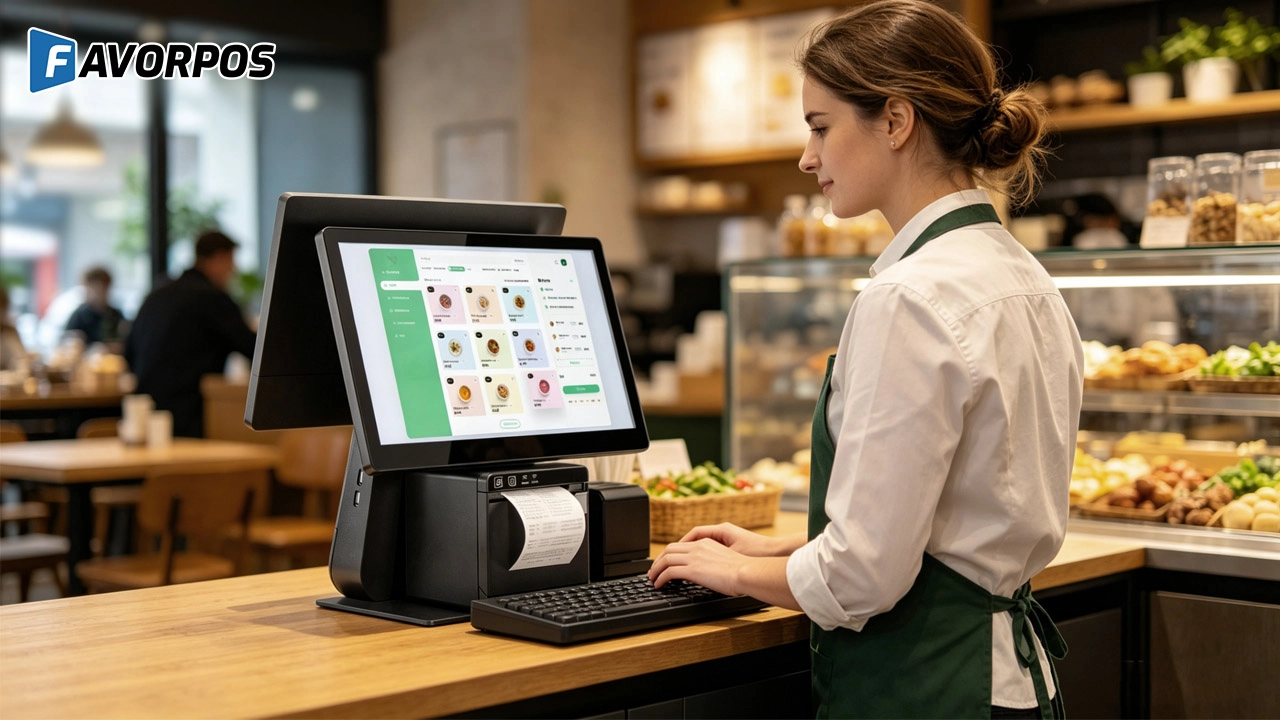
Smart Checkout, Simplified: Exploring the Power of a 15.6-Inch All-in-One POS Terminal
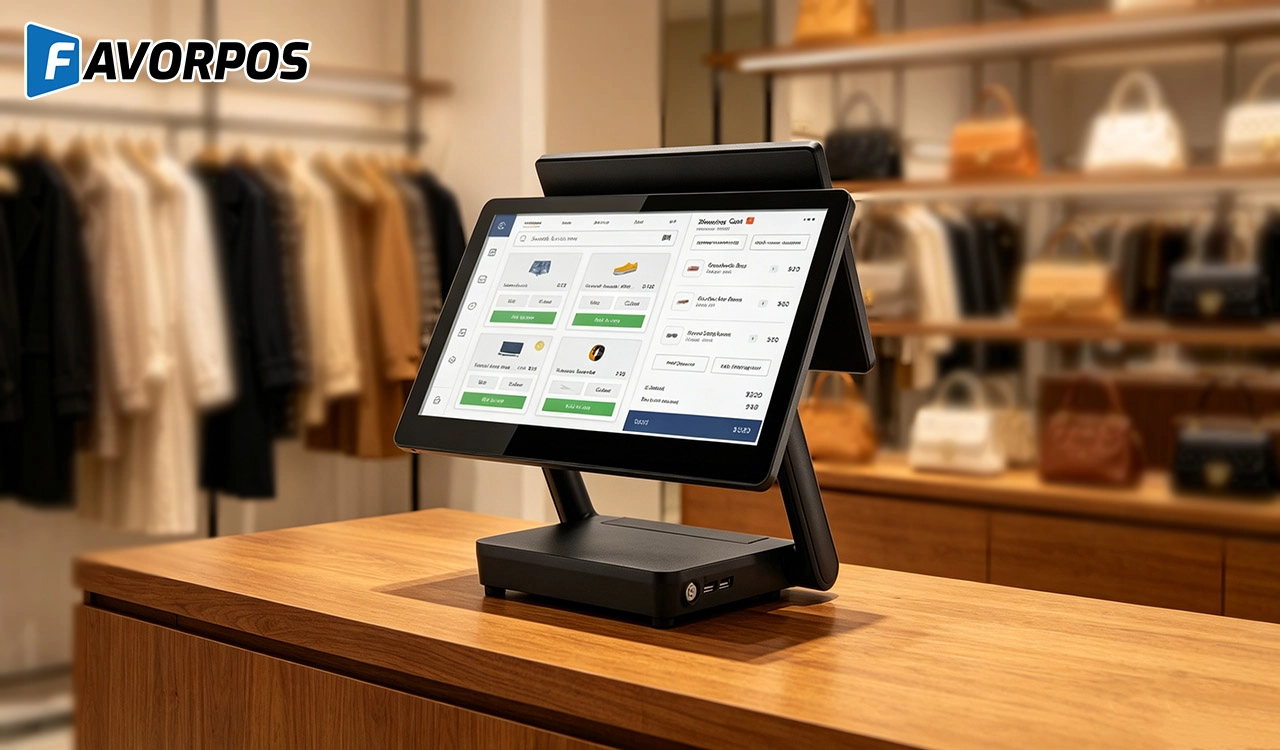
Why a 15.6” Touch POS Terminal Is Becoming the New Standard in High-Traffic Retail
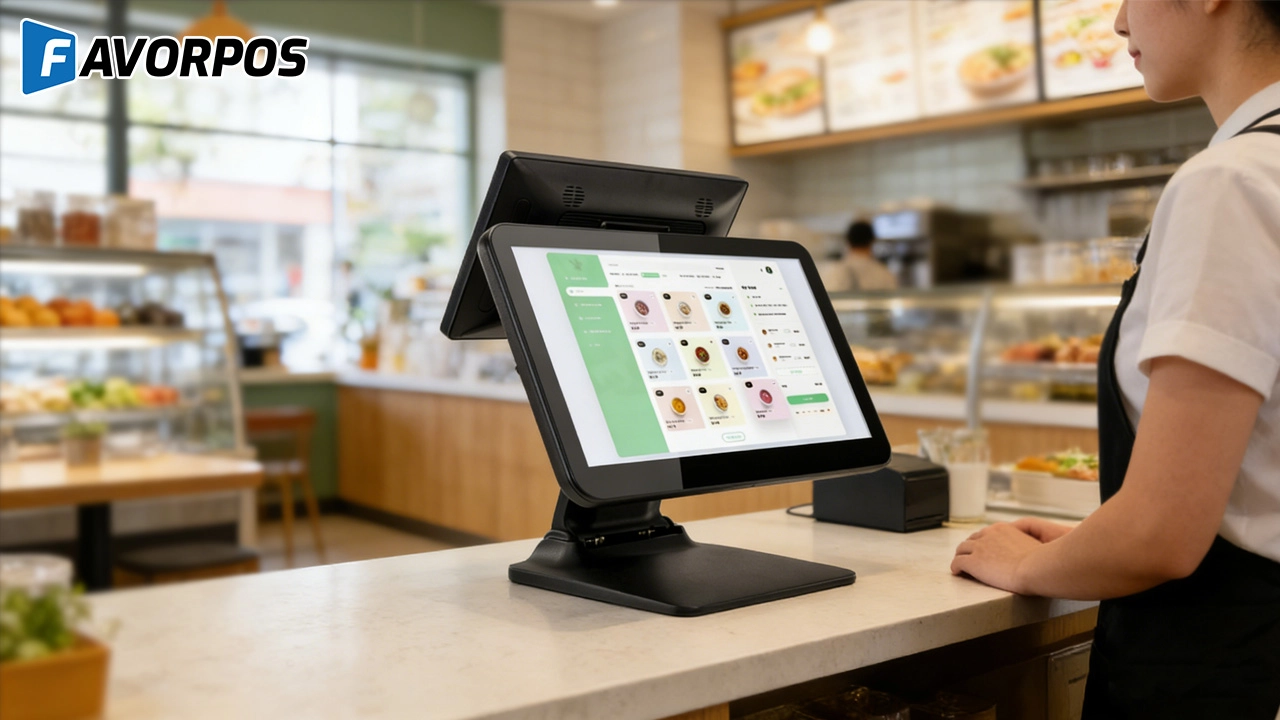
Beyond Checkout: How a 15.6-Inch Aluminum POS System Redefines Retail Efficiency
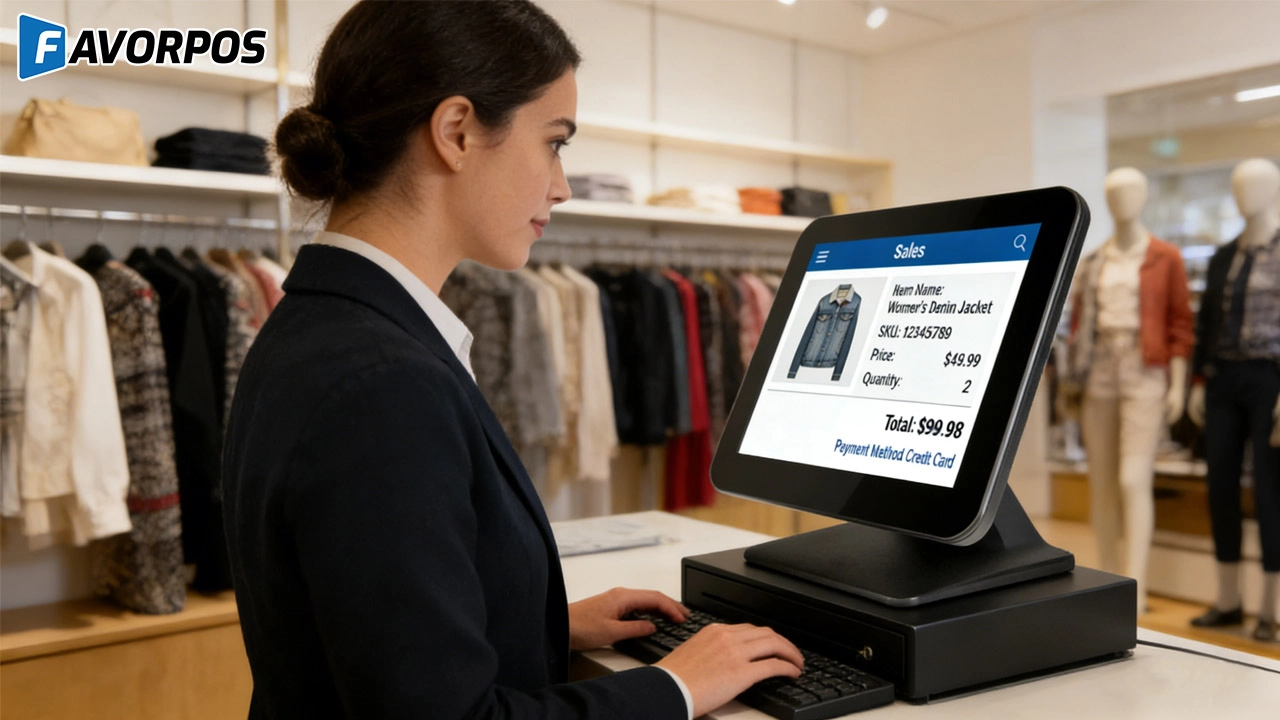
Understanding 15-Inch Aluminum POS Terminals in Modern Commercial Use
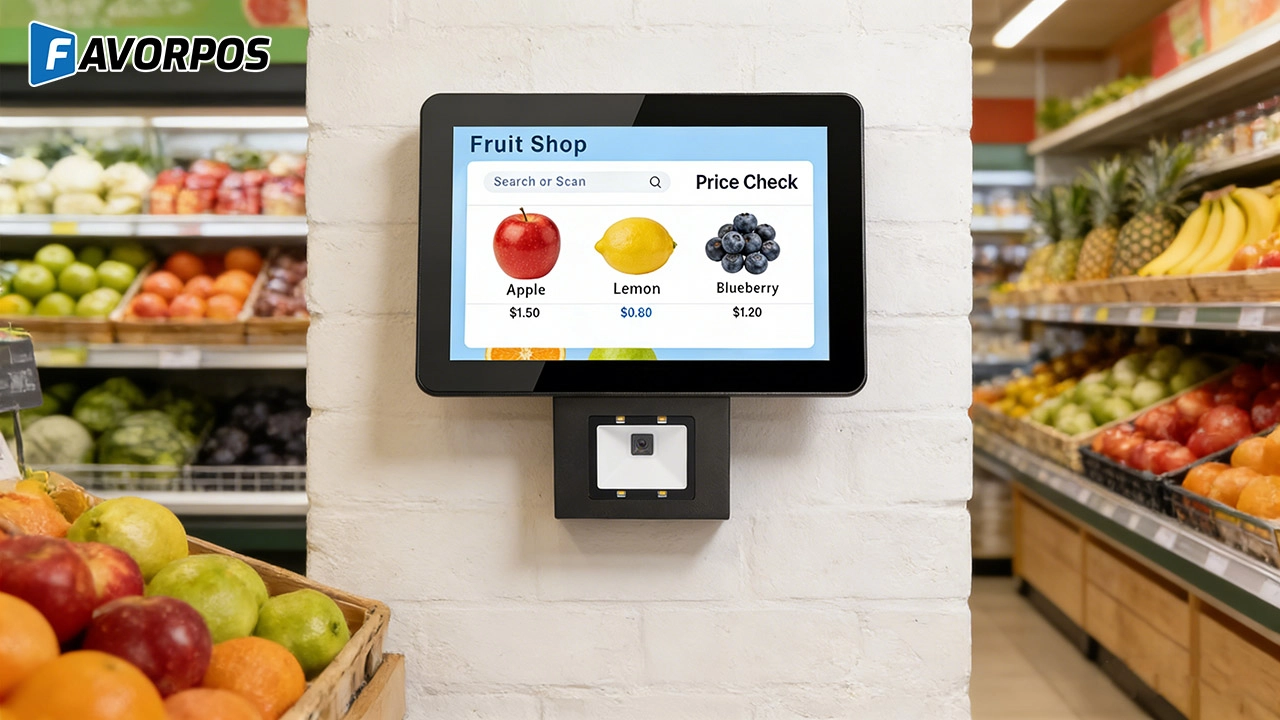
The Smart Way to Check Prices: How a 10.1-Inch Wall-Mounted Price Checker Transforms Retail Stores
For Hotels
Does your POS system support multi-currency payments?
Yes, our system supports multi-currency payments, making it convenient for international guests to pay in their preferred currency.
For Bakeries
Can custom cake orders be easily managed?
Yes, our system is designed to handle special orders, allowing customers to easily customize cakes and pastries, and employees can track these orders from start to finish.
For company
What kind of certifications do you have?
CE, ROHS, and FCC as standards.
For Government and Public
Can the system be accessed and managed remotely?
Yes, our POS system provides remote access capabilities, allowing you to manage and supervise from different locations, ensuring centralized control.
For Restaurants & Cafes
Does your POS system support multiple languages and currencies?
Yes, our POS system supports multi-language operation interfaces and multi-currency transactions to meet the needs of different regions and markets. You can set the corresponding language and currency options according to the specific requirements of the country or region where your business is located.

11.6 inch Capacitive Touchscreen for POS Machine POS Monitor
FAVORPOS 11.6-inch capacitive touchscreen, specifically designed for POS machines to deliver a seamless and responsive user experience. This high-definition display offers vibrant visuals and crystal clear clarity, making it easy for staff to navigate through transactions efficiently. The capacitive technology ensures quick and accurate touch recognition, reducing wait times and enhancing customer satisfaction. Built to withstand the rigors of daily use, this touchscreen is perfect for retail and hospitality environments.
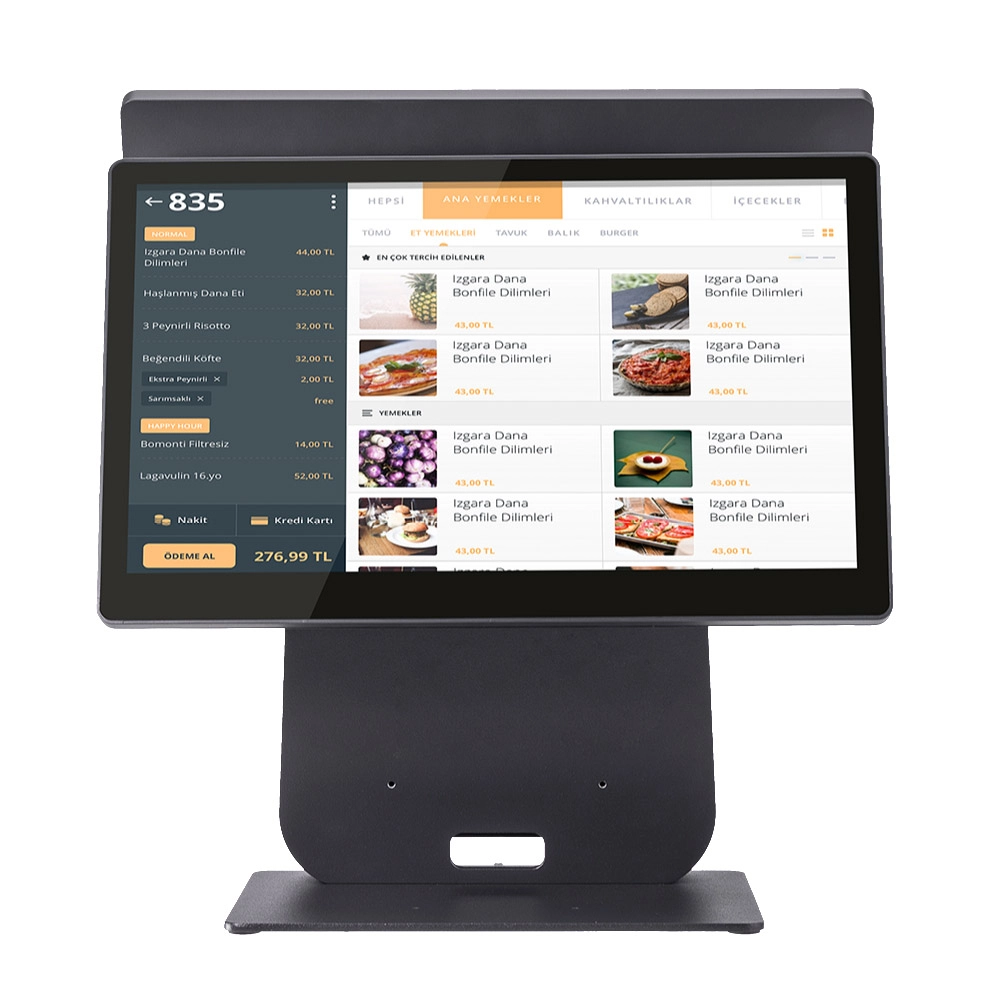
HD Dual Screen POS Machine Aluminum Hardware Android Windows Supplier
This dual-screen POS machine supports both Android and Windows systems, providing flexibility for various applications. The dual screens enhance customer interaction and streamline the checkout process, making transactions quicker and more engaging. Perfect for modern businesses looking to elevate their service and improve customer satisfaction, this POS machine is your ultimate partner in success!
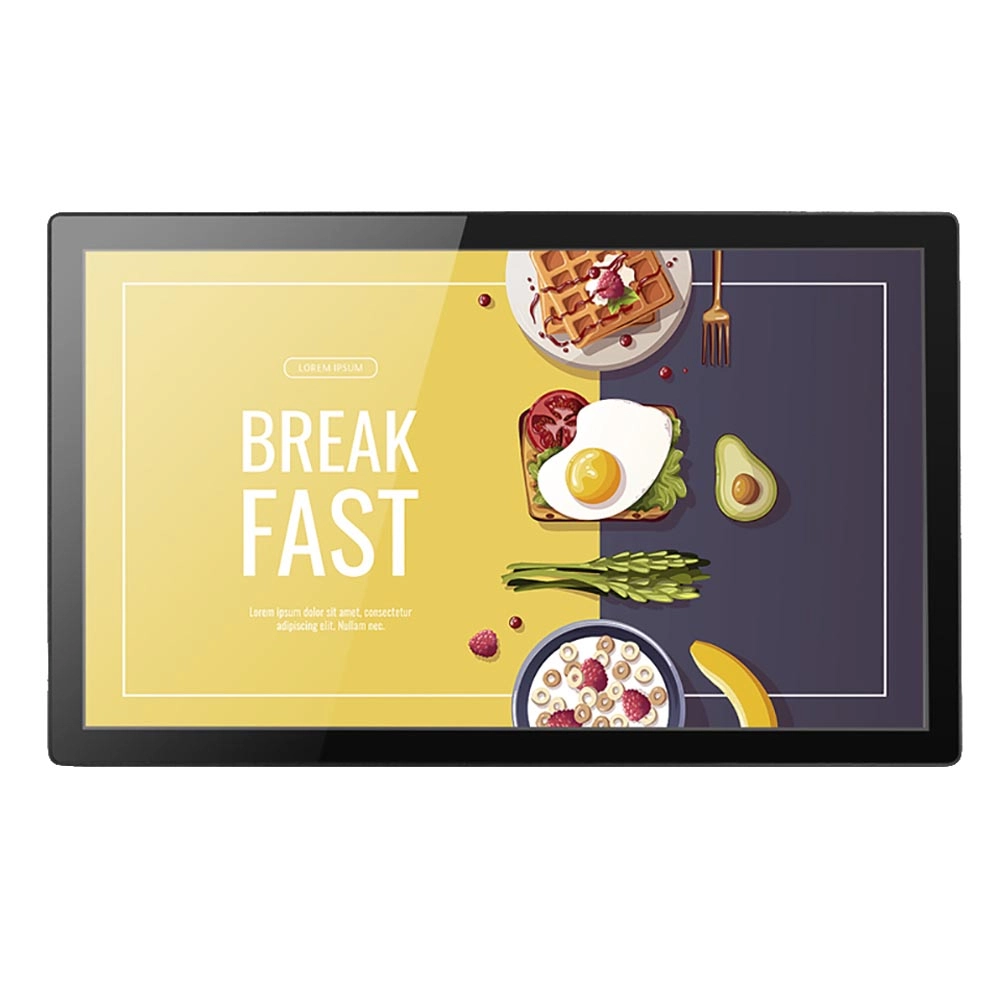
Wall Mount Cash Register POS 21.5 inch for Supermarket Touchscreen Windows Factory
Our sleek and modern wall-mounted POS system features a stunning 21.5-inch LED display, providing exceptional visibility and clarity for seamless customer interactions. The capacitive touchscreen ensures a highly responsive and intuitive user experience, perfect for fast-paced retail environments. With its space-saving wall-mounted design, this POS solution is ideal for optimizing floor space while maintaining a professional and contemporary appearance.
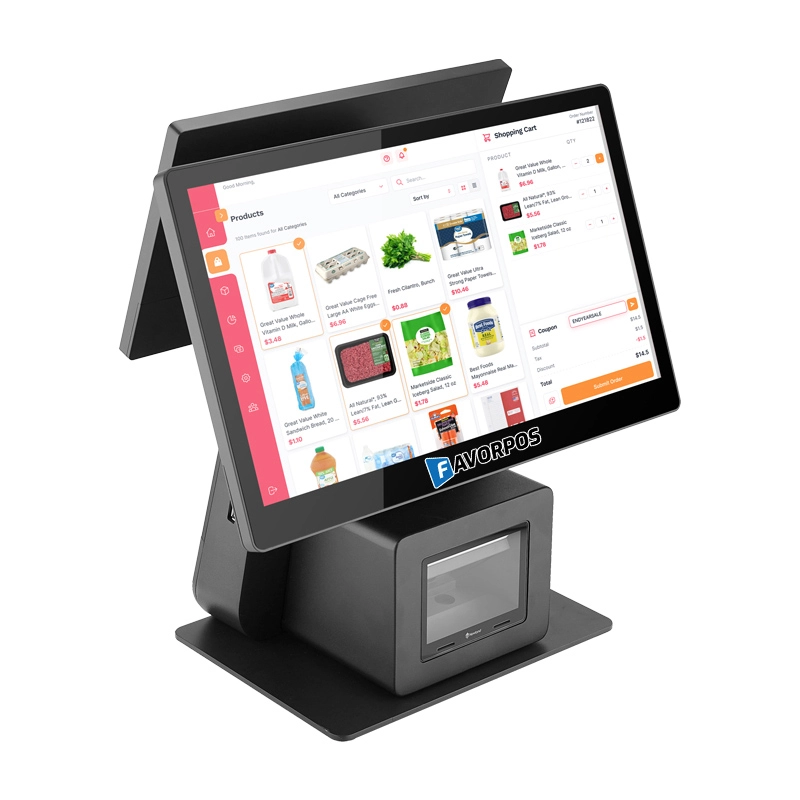
Dual Screen POS With Barcode Scanner Desktop POS Manufacturer POS Factory 15.6 11.6 Client Screen Optional
FAVORPOS: Your leading dual screen POS factory and manufacturer. Our desktop POS with barcode scanner offers 15.6/11.6 client screen options and OS flexibility. Get reliable, efficient dual screen POS with barcode scanner solutions directly from us.
Get in touch
Interested in becoming a POS system dealer? Contact us for more information and start the process of joining our dealer network.
We look forward to working with you to expand the market together.


Copyright © 2025 Favorpos All Rights Reserved.
