
How to migrate from a cash register to a desktop based POS system?
- 1. How do I securely migrate decades of paper receipts and cash register logs into a desktop-based POS's SQL database without losing audit trails?
- 2. What hardware compatibility checks should I perform before switching my cash drawer and receipt printer to a desktop POS system?
- 3. How do I set up offline mode and local backups for a desktop based POS to ensure sales continue during internet outages?
- 4. How do I integrate my existing payment terminal (EMV/PIN pad) with a desktop based POS while remaining PCI compliant?
- 5. What's the best way to convert my product SKUs and inventory with variants from an old register into a desktop POS inventory system to prevent stock mismatches?
- 6. How to manage multi-user permissions and shift controls on a desktop based POS to prevent internal theft and keep audit trails?
Transitioning from a legacy cash register to a desktop based POS system (on-premise POS or PC POS software) has real operational and compliance implications. Below are six specific, pain-point-focused questions often missing detailed answers online, with step-by-step guidance, checks, and recommended best practices to help merchants make an informed, low-risk purchase and migration.
1. How do I securely migrate decades of paper receipts and cash register logs into a desktop-based POS's SQL database without losing audit trails?
Common pain: paper-backups and register journal tapes contain essential audit trails and historical sales that must be preserved for tax and reconciliation purposes. To migrate them safely:
- Inventory your source data: identify physical journals, tape archives, and any exportable electronic logs from the cash register. Note formats (paper, CSV, proprietary).
- Digitize paper records first: use a high-resolution scanner and OCR workflow (set to produce searchable PDF and CSV output). Keep original images as immutable evidence.
- Extract structured fields: map date/time, receipt number, cashier ID, SKU/description, quantity, unit price, tax, payment method. Create a mapping spreadsheet that shows source field → target POS field.
- Use an intermediate CSV/JSON staging table: import scanned/OCRed data into a staging database (separate from your live POS SQL database). This lets you validate and clean data without affecting daily operations.
- Preserve audit store original receipt images and a copy of the raw imported rows in an archival table with timestamps and user IDs who performed the import. Include an immutable flag or checksum for each imported record.
- Reconcile before final import: run test imports for a small date range and reconcile totals (gross sales, tax, tender breakdown) between the legacy register reports and the POS staging results. Investigate any variances—often due to rounding, compounded discounts, or missing SKUs.
- Perform incremental imports and keep a roll-back plan: import in batches (e.g., month-by-month), verify, then commit to the production POS database. Keep exports of pre-import state to permit rollback if needed.
- Retain traceability: always link new POS transaction IDs to original receipt numbers in a reference field so auditors can trace back to paper evidence.
Why this matters: following a staged, auditable approach prevents lost records, preserves compliance, and gives you a verifiable chain-of-custody for historic data.
2. What hardware compatibility checks should I perform before switching my cash drawer and receipt printer to a desktop POS system?
Common pain: legacy peripheral ports (serial/parallel) and proprietary cabling can halt deployment if not checked beforehand. Do:
- Catalog current peripherals: printer make/model (e.g., Epson/Star), cash drawer type (drawer-kick connector or RJ11), barcode scanner (USB/keyboard wedge/serial), and any weighing scales.
- Verify interface types and drivers: legacy registers often use RS-232 (serial) or parallel. Confirm Windows version compatibility (if your desktop POS runs on Windows 10/11 or Windows Server). Seek vendor drivers or plan for USB-to-serial adapters with known driver support.
- Check OS and driver signing: modern systems prefer signed drivers. Request the peripheral vendor’s current driver and test installation on the same OS build as planned for the POS workstation.
- Test cash drawer kick codes and hardware triggers: identify the printer-to-drawer kick wiring and confirm the POS software supports the same drawer trigger. Some desktop POS solutions require the drawer connected to the printer; others directly via RJ-12 to a COM/USB port.
- Confirm power and connector requirements: peripherals may require external power supplies or specific interface voltages—validate to avoid damaging devices.
- Plan for replacements if needed: if drivers are unavailable, budget for modern, POS-certified peripherals (Epson TM/TM-m series, Star TSP series) that guarantee compatibility with desktop POS systems and provide robust SDKs.
- Create a hardware test bench: before full rollout, set up a workstation with the intended OS and POS software and test all peripherals end-to-end: printing receipts, opening cash drawer, scanning barcodes, and peripheral concurrency under load.
Outcome: a verified hardware list avoids last-minute procurement and ensures a smooth switchover on day one.
3. How do I set up offline mode and local backups for a desktop based POS to ensure sales continue during internet outages?
Common pain: merchants fear downtime, missed sales, and data loss when the internet goes down. Desktop based POS systems can be configured to run as an on-premise POS with offline resilience:
- Choose POS software with native offline-first behavior: ensure it caches sales transactions locally and can process card payments via an integrated offline payment workflow or store-and-forward tokenization if your payment partner supports it.
- Local database and sync architecture: use a local SQL (or embedded) database on the POS terminal or local server to store sales, inventory changes, and shift logs. The system should queue outbound syncs and retry automatically when connectivity returns.
- Design backup cadence and retention: implement scheduled local backups (daily snapshots) to a separate on-premise NAS or external drive, and automate secure replication to a cloud backup when internet is available to avoid single-point failure.
- Ensure transactional integrity: use ACID-compliant storage (e.g., SQL Server Express, PostgreSQL, SQLite depending on the POS) to avoid partial writes. Test power-failure recovery by simulating outages in a lab environment.
- Define reconciliation and conflict resolution rules: if multiple terminals operate offline and later sync, ensure your POS handles SKU-level merges, incremental stock adjustments, and preserves a last-write or aggregate resolution policy documented in your operations guide.
- Test payment processing scenarios: for EMV/card payments, offline authorization policies vary by acquirer. Confirm whether your payment processor supports offline approvals or if you should switch to mobile/cellular terminals as a backup.
- Train staff on fallback processes: when offline, staff should know how to accept manual tenders, print receipts, and perform end-of-day procedures that align with later syncs to the central POS ledger.
Result: well-configured offline and backup layers let you maintain sales continuity and protect transactional data integrity during outages.
4. How do I integrate my existing payment terminal (EMV/PIN pad) with a desktop based POS while remaining PCI compliant?
Common pain: merchants worry about PCI scope and the technical complexity of integrating EMV terminals. Steps and considerations:
- Prefer PCI-validated integrations: use a POS that supports direct integration with PCI-approved payment processors or uses point-to-point encryption (P2PE) and tokenization to reduce your PCI DSS scope.
- Use certified SDKs and integrations: accepted integrations typically use vendor SDKs (e.g., POS vendor + payment OEM SDK). Confirm the payment terminal model’s SDK compatibility with your POS platform and OS.
- Choose a recommended terminal model: ask your POS vendor for a list of certified terminals and PIN pads that have working drivers and are validated for EMV and contactless payments under your acquiring bank.
- Adopt P2PE/tokenization: with P2PE, cardholder data is encrypted at the terminal and never traverses the POS application in cleartext. Tokenization ensures stored payment references are non-sensitive tokens.
- Coordinate with your acquirer: EMV integrations often need merchant account configuration on the acquiring bank’s side and possibly terminal certification testing (merchant acceptance testing) before go-live.
- Document processes for offline and declined transactions: some terminals support offline EMV but with risk limits. Work with your processor to set fallbacks and clear staff procedures for manual authorization if absolutely necessary (not recommended if avoidable).
- Maintain logs and retention: ensure the POS records transaction IDs, authorization codes, and token references for reconciliation without storing sensitive PAN data—this supports audits while staying compliant.
Bottom line: integrating EMV safely requires using certified terminals, P2PE/tokenization from your processor, and following documented certification steps with your acquirer; this reduces PCI burden and prevents costly audit issues.
5. What's the best way to convert my product SKUs and inventory with variants from an old register into a desktop POS inventory system to prevent stock mismatches?
Common pain: cash register records often lack structured SKU/variant hierarchies (size/color) leading to mismatches and reconciliation errors. Recommended approach:
- Perform SKU discovery: export or manually compile a master SKU list from your register or purchase records. Capture descriptions, vendor codes, current on-hand (if available), cost, price, tax category, and any variant attributes.
- Normalize SKUs and variants: standardize naming conventions (e.g., SKU-PRODUCT-COLOR-SIZE) and create a hierarchical catalog where a parent product links to variant SKUs. Desktop inventory modules typically expect a primary SKU per stock-keeping unit.
- Map non-SKU sales lines: older registers sometimes used free-text items. For those, create mapping rules (keywords → SKU) and flag ambiguous lines for manual review during import.
- Initial physical stocktake: before finalizing, perform a truncated cycle count or full stocktake for high-turn items. Use barcode scanning to validate counts and capture discrepancies early.
- Import into staging and run test reconciliations: load SKUs, prices, and counts into a test POS environment and simulate typical transactions. Compare expected stock movements against physical counts.
- Set up reorder points and lot control where applicable: desktop POS inventory modules usually allow low-stock alerts, lot/batch tracking, and cost-layering (FIFO/LIFO). Configure policies that match your purchasing cadence.
- Train staff on proper variant selection: cashier errors often cause mismatches—enforce scanning of barcodes rather than manual selection and use enforced mandatory variant selection on UI where appropriate.
- Schedule post-migration audits: reconcile sales and purchases across the first few weeks and adjust beginning balances if needed. Maintain an audit log of any manual adjustments with reasons.
Why this works: systematic SKU normalization and a physically verified opening balance drastically reduce stock discrepancies and improve reorder accuracy.
6. How to manage multi-user permissions and shift controls on a desktop based POS to prevent internal theft and keep audit trails?
Common pain: small businesses often rely on single passwords or shared keys, creating weak auditability. To improve controls:
- Use role-based access control (RBAC): define roles (cashier, manager, inventory clerk, admin) and map specific privileges (refunds, voids, price overrides, inventory adjustments) to those roles. Never grant broad privileges to cashiers.
- Enforce unique logins and strong passcodes: require per-user credentials and implement password complexity and periodic change policies. Consider two-factor authentication for back-office access.
- Enable shift/session tracking: require employees to open and close their shifts with starting cash counts and end-of-shift reconciliation. The POS should record who performed each action and timestamp it in the audit log.
- Restrict sensitive actions and require manager approval: configure the POS to require a manager override for refunds above a set amount or for item price changes. For traceability, record the manager’s ID and reason for the override.
- Use supervised access for cash drawer access: log every drawer open event and link it to a transaction when possible. Randomly review drawer-open events to detect patterns of suspicious access.
- Run and schedule audit reports: daily exception reports (voids, discounts, high-value refunds), cashier over/shorts, and inventory adjustments provide early indicators of abuse or process issues.
- Combine with physical controls and camera review: align POS timestamps with CCTV footage for investigations. Keep retention policies for POS logs and security video sufficient for your local regulatory needs.
Effect: a layered access model with enforced shift controls and manager approvals preserves accountability, deters theft, and produces an audit trail acceptable for financial review.
Concluding summary of advantages of a desktop based POS system
Moving from a cash register to a desktop based POS (an on-premise POS or PC POS software) delivers improved inventory management, richer sales reporting, stronger audit trails, configurable offline resilience, and tighter hardware and payment integrations while keeping data ownership local. Proper planning—data staging, hardware compatibility checks, PCI-compliant payment integration, SKU normalization, and role-based security—minimizes migration risk and accelerates ROI. Desktop POS solutions typically offer more control over backups, local SQL database performance tuning, and integration with accounting systems, making them an excellent choice for retailers who want reliable, resilient point-of-sale operations.
For a tailored migration plan, hardware compatibility audit, or a formal quote, contact us at www.favorpos.com or email sales2@wllpos.com.
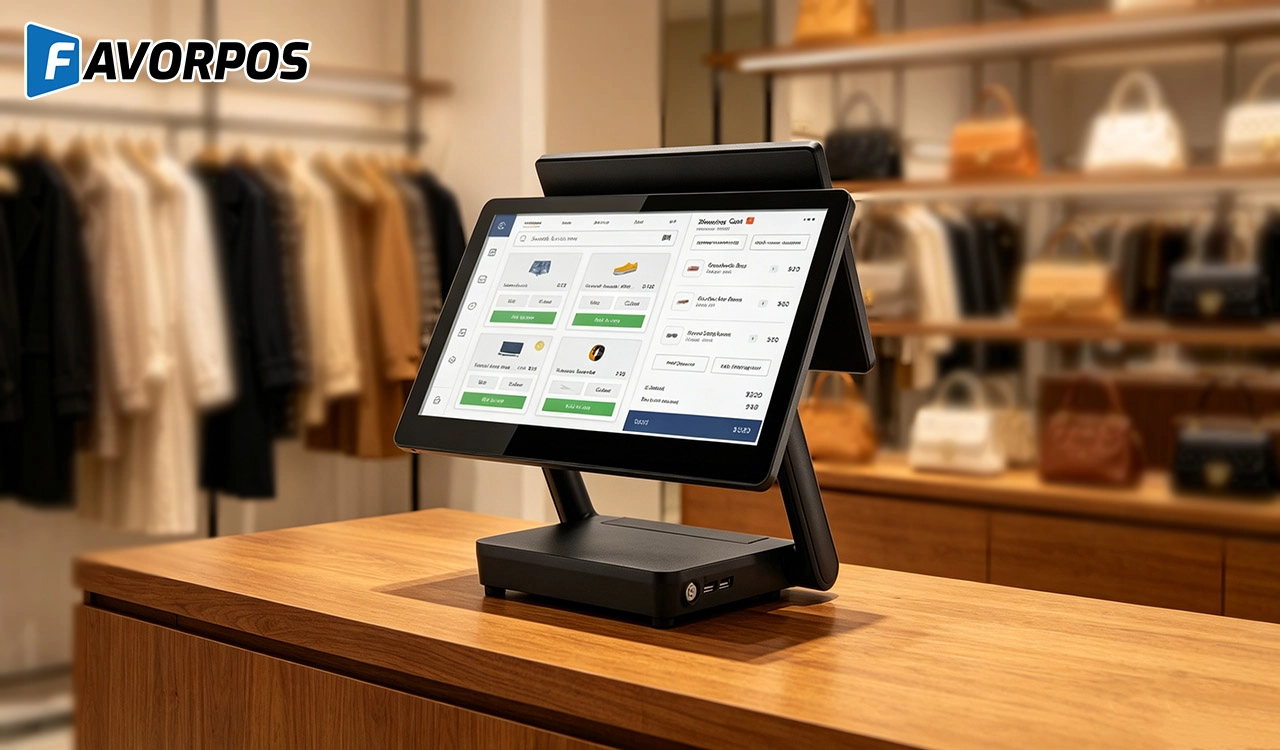
Why a 15.6” Touch POS Terminal Is Becoming the New Standard in High-Traffic Retail
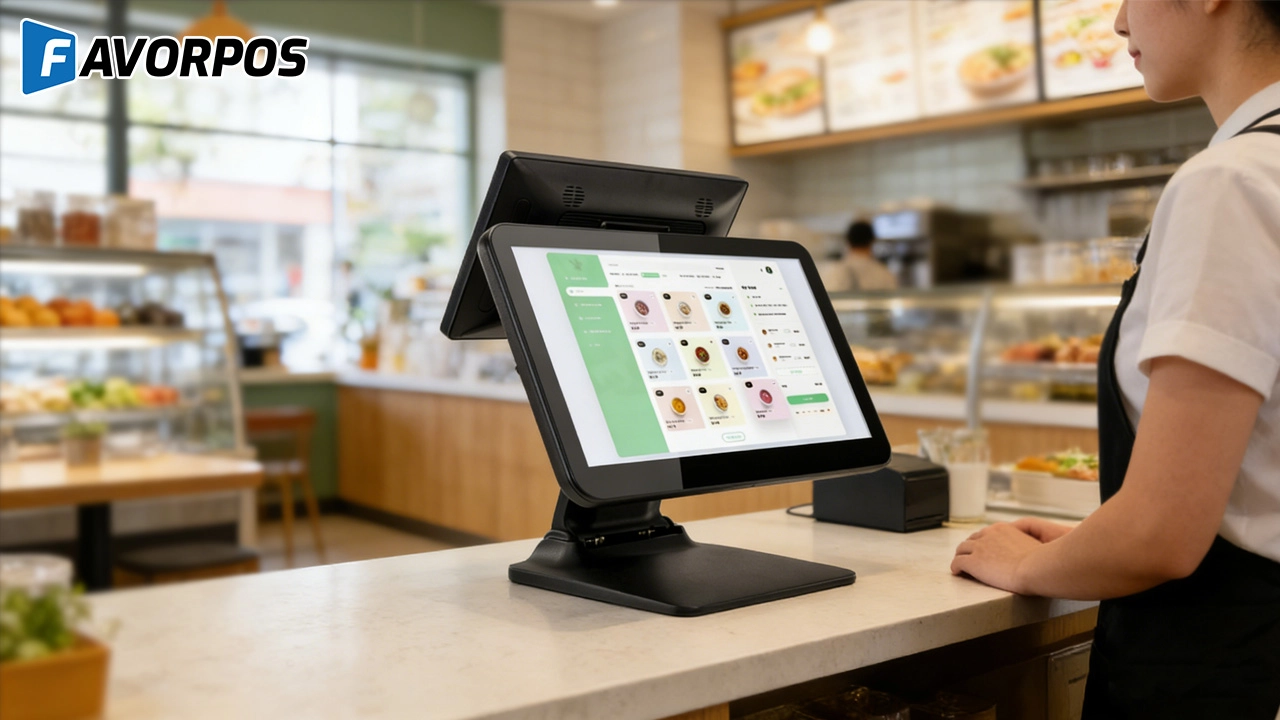
Beyond Checkout: How a 15.6-Inch Aluminum POS System Redefines Retail Efficiency
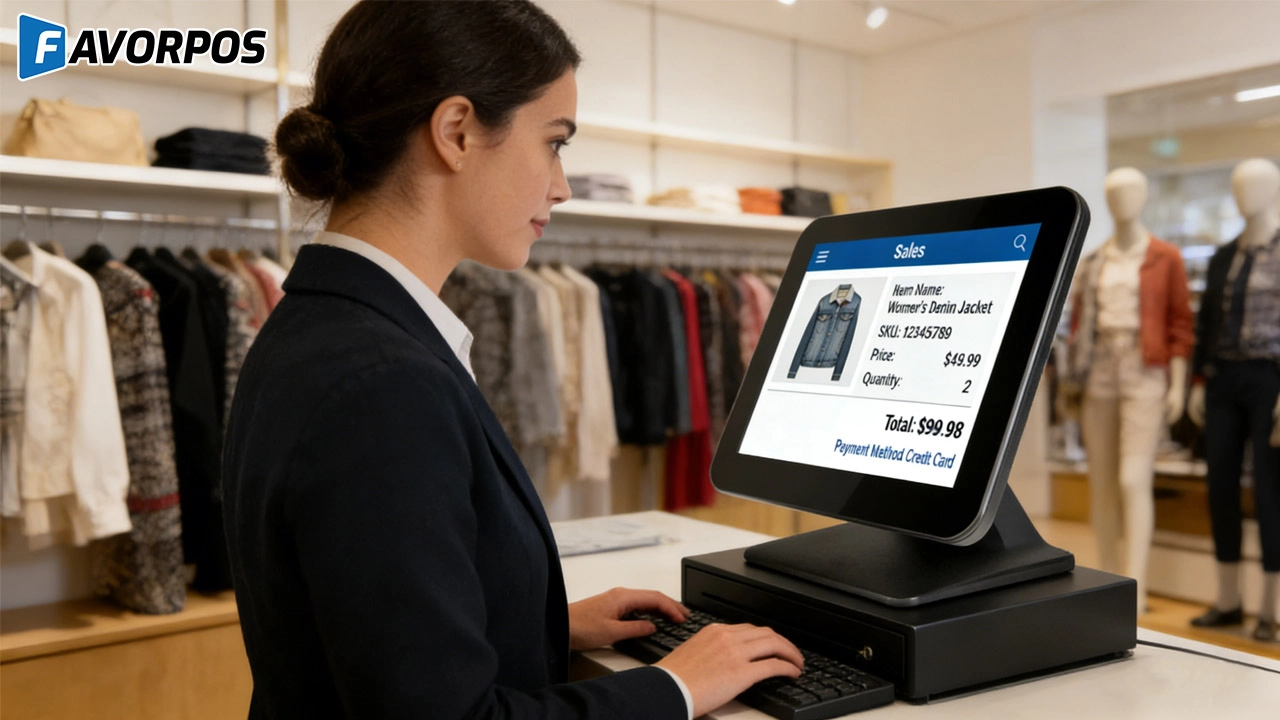
Understanding 15-Inch Aluminum POS Terminals in Modern Commercial Use
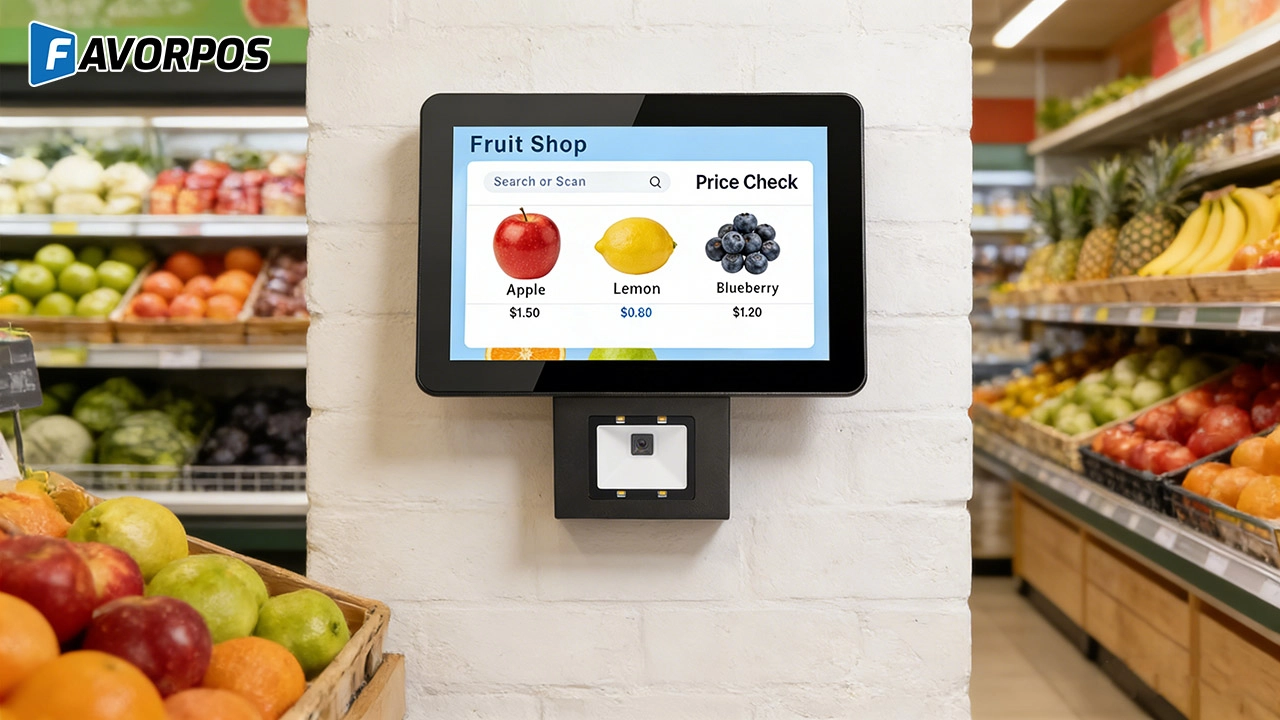
The Smart Way to Check Prices: How a 10.1-Inch Wall-Mounted Price Checker Transforms Retail Stores
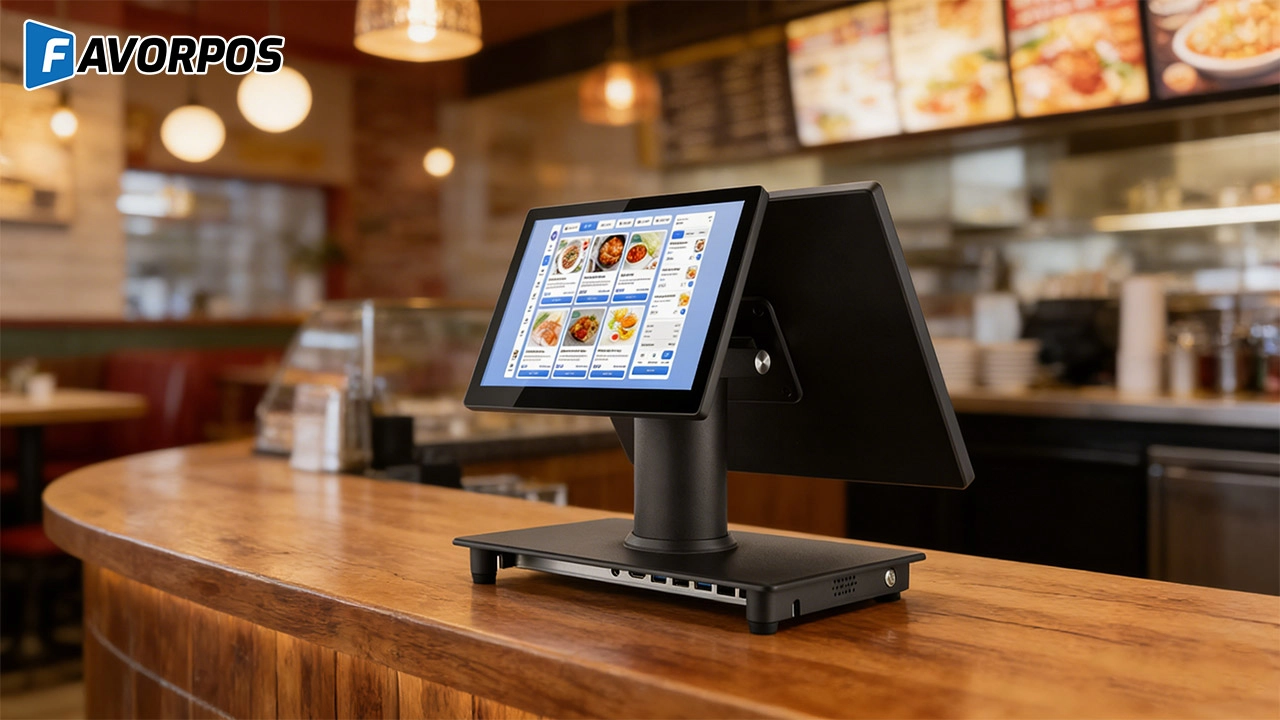
A Smarter Checkout Experience: The 15-Inch Dual-Screen POS Built for Modern Retail
For Restaurants & Cafes
Does your POS system support a variety of payment methods?
Yes, our POS system supports a variety of payment methods, including credit cards, debit cards, mobile payments (such as Apple Pay, Google Pay) and contactless payments (NFC). We ensure that the transaction process is safe and smooth to meet the various payment needs of customers.
For OEM
What kind of OEM service do you provide?
OEM (Original Equipment Manufacturer) service means that we provide services such as printing logos and custom packaging to customers according to their needs.
What is the development cost of a customized POS machine?
The development cost of a customized POS machine depends on the required design and functional specifications. We will provide a detailed quotation after the initial consultation. The cost includes design, prototyping, production and other related services.
How to deal with warranty and repair issues of POS machines?
We provide warranty services for customized POS machines. The warranty period and coverage are subject to specific contracts. During the warranty period, if the device fails, we will provide free repair services. You can submit a repair request through our after-sales service team, and we will handle your problem as soon as possible.
For Solutions Retail
Do you provide remote diagnosis and technical support?
Yes, we provide remote diagnosis services, which can quickly identify and resolve system failures and reduce equipment downtime. At the same time, our technical support team can also help you complete daily operations or troubleshoot difficult problems through remote assistance.
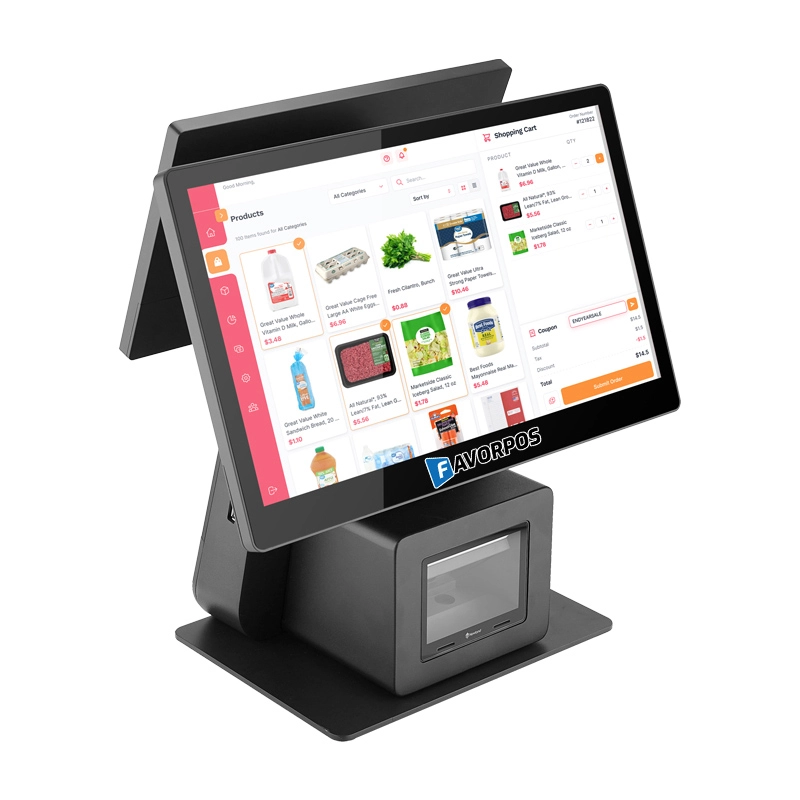
Dual Screen POS With Barcode Scanner Desktop POS Manufacturer POS Factory 15.6 11.6 Client Screen Optional
FAVORPOS: Your leading dual screen POS factory and manufacturer. Our desktop POS with barcode scanner offers 15.6/11.6 client screen options and OS flexibility. Get reliable, efficient dual screen POS with barcode scanner solutions directly from us.
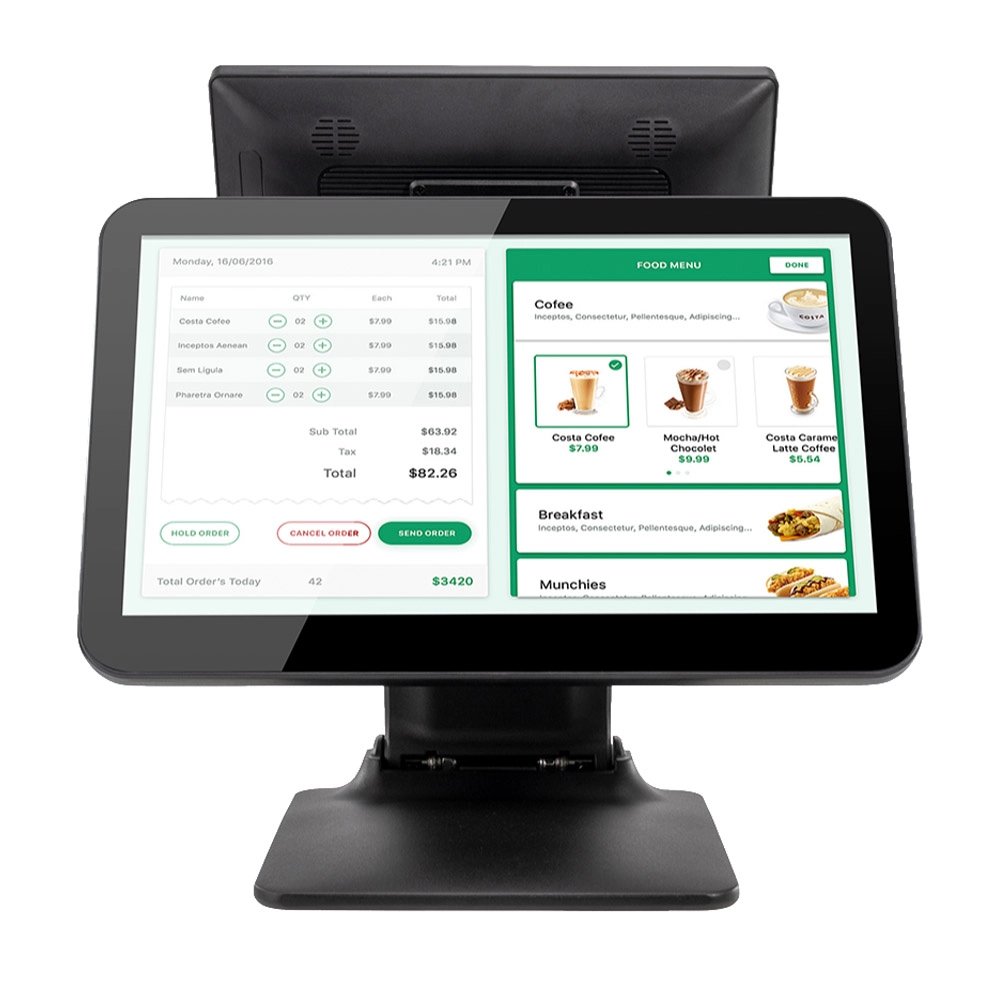
Foldable Touch Screen POS Cash Register 15.6'' Windows Supplier Aluminum
This innovative cash register combines portability with advanced functionality, making it ideal for retail environments. Its aluminum construction ensures durability while maintaining a lightweight design for easy transport and setup. The foldable feature allows for convenient storage and flexibility in various business settings.
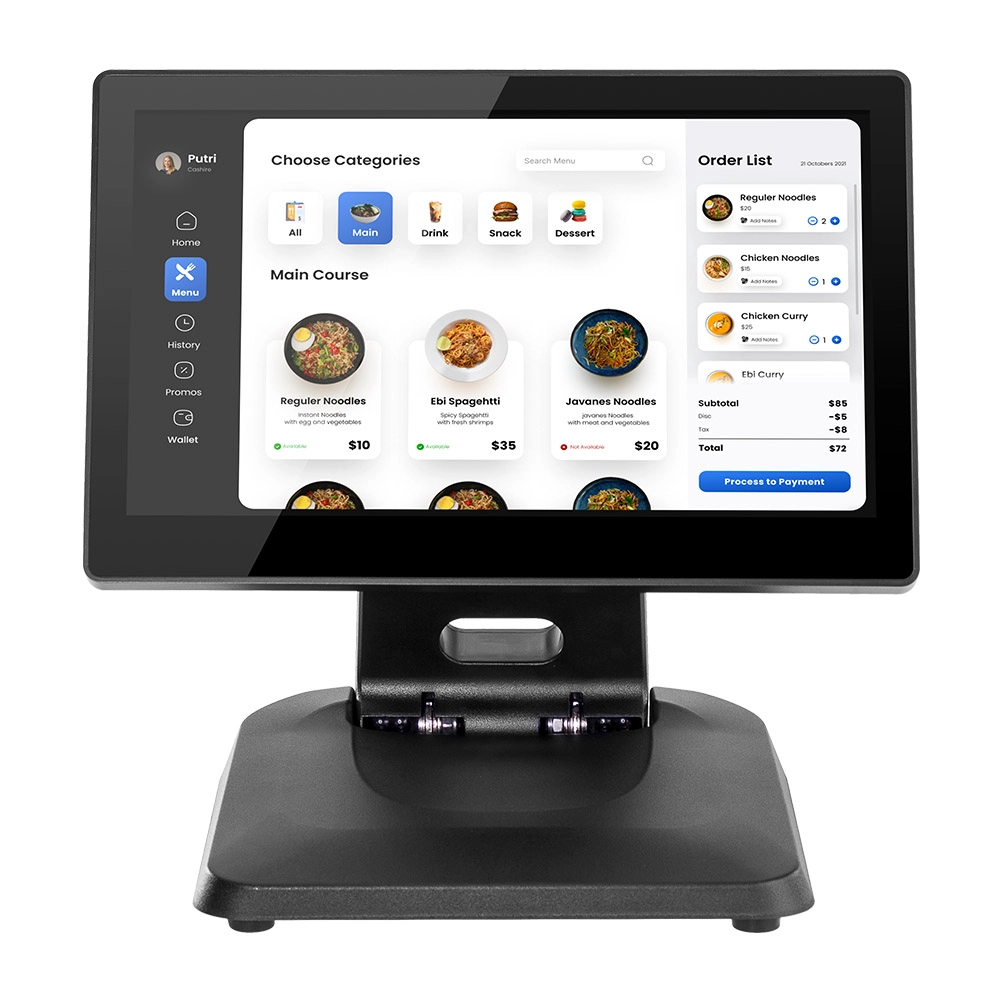
Factory 11.6'' Touch Screen POS Terminal Android Windows
The Factory 11.6'' Touch Screen POS Terminal is a versatile solution that supports both Android and Windows operating systems. Designed for durability and efficiency, this terminal is perfect for various retail environments. Its compact size and responsive touch screen enhance customer interactions, making transactions quick and seamless.
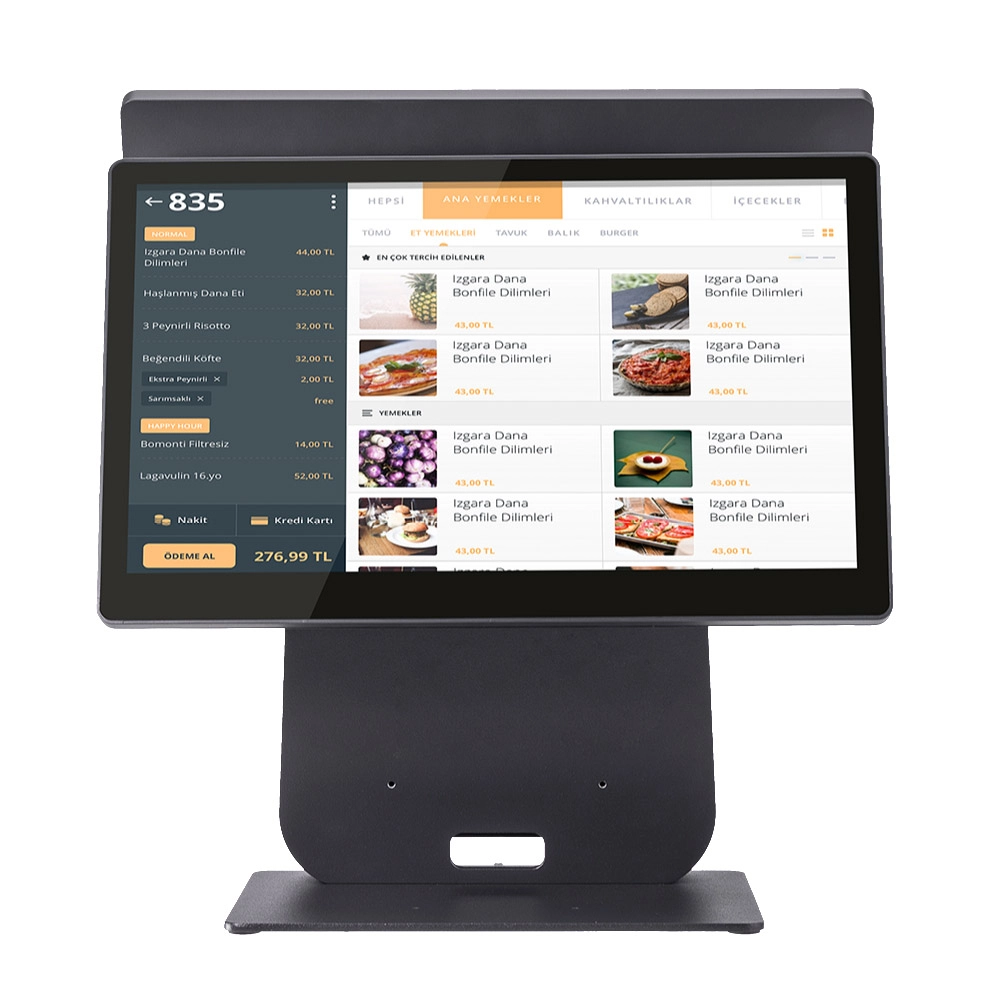
HD Dual Screen POS Machine Aluminum Hardware Android Windows Supplier
This dual-screen POS machine supports both Android and Windows systems, providing flexibility for various applications. The dual screens enhance customer interaction and streamline the checkout process, making transactions quicker and more engaging. Perfect for modern businesses looking to elevate their service and improve customer satisfaction, this POS machine is your ultimate partner in success!
Get in touch
Interested in becoming a POS system dealer? Contact us for more information and start the process of joining our dealer network.
We look forward to working with you to expand the market together.


Copyright © 2025 Favorpos All Rights Reserved.
