
What is a POS desktop system and who needs it?
- 1) What minimum hardware specs should I choose for a POS desktop system that processes ~200 transactions/day and manages ~100,000 SKUs?
- 2) How do I secure cardholder data on an on‑premise POS desktop system to meet PCI‑DSS without third‑party P2PE?
- 3) How can I ensure receipt printers, barcode scanners, and cash drawers will work reliably with my POS desktop system across Windows and Linux?
- 4) What database and backup strategy prevents data loss on a POS desktop system during power or network outages?
- 5) How do I accurately compare total cost of ownership (TCO) between cloud POS subscriptions and buying a one‑time POS desktop system over 5 years?
- 6) Which POS desktop system features are essential when running multiple locations that require centralized inventory and offline selling?
- Concluding summary: Advantages of a POS desktop system
POS Desktop System: What It Is and Who Needs It
This article answers six high‑value, under‑served questions beginners and buyers ask about a pos desktop system. Each answer focuses on procurement pain points: hardware sizing, PCI security for on‑premise systems, peripheral interoperability, database and backup strategies, cost comparison with cloud POS, and multi‑location centralization with offline capability. Semantic terms such as desktop POS terminals, on‑premise POS, POS workstation, inventory management integration, PCI‑DSS, and receipt printer compatibility are used throughout.
1) What minimum hardware specs should I choose for a POS desktop system that processes ~200 transactions/day and manages ~100,000 SKUs?
For a desktop POS workstation that serves a medium‑traffic store (~200 sales/day) while supporting a catalog of ~100,000 SKUs, hardware must balance CPU, memory, storage, and I/O:
- CPU: Modern quad‑core processor (e.g., Intel i3/i5 series or equivalent AMD Ryzen 3/5). These desktop CPUs provide the single‑threaded responsiveness needed for POS client software and desktop database operations.
- RAM: 8–16 GB. 8 GB is adequate for a single active cashier terminal running a Windows/Linux POS client plus browser and background services; 16 GB provides headroom for integrations (inventory sync, analytics agents).
- Storage: 256–512 GB NVMe or SATA SSD. SSDs greatly reduce database latency and improve boot/recovery times versus HDDs. Use an SSD for the OS and local database files; keep archival data on network storage.
- Network: Gigabit Ethernet port and reliable Wi‑Fi (802.11ac or ax) if wireless is used. A wired connection is preferable for desktop POS terminals to ensure consistent throughput for integrations like real‑time inventory management.
- I/O & Peripherals: USB 3.0 ports for barcode scanners and card readers, serial (RS‑232) or USB‑to‑serial adapters for legacy printers, and multiple display outputs if you use a customer display.
- UPS: A small UPS (uninterruptible power supply) with line‑interactive regulation to allow graceful shutdown and protect local databases during short outages.
Why these choices: managing 100,000 SKUs implies a larger local product index—fast storage and sufficient RAM reduce lookup and search latency. If you run the POS client and a local relational database (MySQL, PostgreSQL, or SQLite‑based systems), prioritize SSD and RAM. For pure thin‑client architectures (desktop POS terminals connected to a cloud POS server), CPU and disk needs decrease but network reliability becomes critical.
2) How do I secure cardholder data on an on‑premise POS desktop system to meet PCI‑DSS without third‑party P2PE?
If you keep any cardholder data on a local on‑premise POS desktop system, you must meet PCI‑DSS requirements. Steps and best practices:
- Avoid storing PANs (Primary Account Numbers). Configure the POS software to use tokenization or only store last four digits and expiration when permitted.
- Use PCI‑validated payment terminals/readers when possible. Although you asked about avoiding third‑party P2PE, using a PCI‑approved payment terminal that performs local encryption (SRED or P2PE) minimizes the scope of your cardholder data environment (CDE).
- Isolate the POS workstation network. Place POS desktops on a segmented VLAN with strict firewall rules. Limit inbound/outbound services to only what the POS software needs.
- Harden OS and applications: disable unnecessary services, apply regular security patches, use host‑based firewalls, and enforce least‑privilege user accounts for cashiers.
- Encrypt local backups and disks with full disk encryption (FDE) using enterprise tools (e.g., BitLocker on Windows, LUKS on Linux).
- Maintain logging and monitoring: centralize logs from POS desktops, payment agents, and network devices to detect anomalies.
- Implement physical security: lock the desktop POS workstation, restrict USB usage (use endpoint control to prevent unauthorized exfiltration), and audit access to the POS area.
- Regularly test and document: perform quarterly scans, annual PCI SAQ or QSA assessments as required, and penetration tests if your environment justifies them.
Reference points: PCI DSS is maintained by the PCI Security Standards Council; tokenization and P2PE reduce PCI scope substantially. If you cannot implement P2PE, compensate with strong segmentation, encryption, and documented controls.
3) How can I ensure receipt printers, barcode scanners, and cash drawers will work reliably with my POS desktop system across Windows and Linux?
Peripheral compatibility is a top procurement headache. To reduce integration friction:
- Prefer industry‑standard interfaces: USB‑HID for barcode scanners, USB or Ethernet for receipt printers, and RJ‑12 for cash drawers (driven from printers). USB‑HID scanners are plug‑and‑play across OSes and emulate keyboards.
- Check driver support: ensure the POS software vendor provides tested drivers or middleware for Windows and Linux. Many POS applications use common printer languages (ESC/POS), which are supported by most receipt printers.
- Use networked (Ethernet) receipt printers when possible: Ethernet printers avoid USB driver issues and allow multiple terminals to print to a shared device.
- Test cash drawer triggers: cash drawers often open via an impulse from the receipt printer. Verify the printer model and firmware support the required pulse duration; if not, use a direct‑USB drawer or a drawer with its own power and driver.
- Maintain firmware and POS middleware: firmware differences can cause subtle printing issues. Keep printers/scanners on recommended firmware versions and ensure the POS middleware supports the printer’s ESC/POS command set.
- Document fallback procedures: for printer failures, provide instructions for manual receipts, switching to networked printers, or using a mobile POS fallback.
Practical tip: before buying hundreds of units, run a 1–2 week pilot with the exact combo of OS, desktop POS terminal, printer, scanner, and cash drawer. That pilot uncovers driver quirks and ESC/POS differences early.
4) What database and backup strategy prevents data loss on a POS desktop system during power or network outages?
A resilient desktop POS deployment uses a layered approach: local durable storage, transaction journaling, regular backups, and offsite replication.
- Use an ACID‑compliant database: choose a transactional database such as PostgreSQL, MySQL/MariaDB, or a well‑implemented SQLite for single‑terminal setups. ACID properties ensure committed transactions are durable.
- Enable WAL/journaling: for PostgreSQL use WAL (write‑ahead logging); for MySQL enable binary logs and appropriate sync settings. For SQLite, ensure PRAGMA synchronous=FULL (or NORMAL with proper UPS) to reduce corruption risk.
- Configure fsync and disk write policies: ensure the DB is configured to flush commits to disk before acknowledging transactions where data integrity is critical.
- Local UPS and orderly shutdowns: connect desktop POS workstations and critical network storage to a UPS that provides enough time for the POS client to flush data and shut down on extended outages.
- Frequent incremental backups + daily full backups: run automated nightly database dumps or filesystem snapshots to local network attached storage (NAS), then replicate backups offsite or to cloud storage for disaster recovery.
- Replication & redundancy: for multi‑terminal or multi‑store architectures, implement master‑replica replication to a central server (synchronous if you can tolerate latency costs). For on‑premise single store systems, periodic replication to a cloud backup instance protects against site loss.
- Offline transaction queueing: ensure the POS software can queue transactions locally during network loss and replay them to the central server when connectivity returns. Verify reconciliation workflows to handle duplicates or sequence gaps.
These steps minimize transaction loss and ensure you can restore to a known good state after outages.
5) How do I accurately compare total cost of ownership (TCO) between cloud POS subscriptions and buying a one‑time POS desktop system over 5 years?
TCO comparison must include acquisition, recurring, and hidden costs. Build a 5‑year model with these line items:
- Upfront hardware costs: POS desktop workstation, peripherals (printer, scanner, cash drawer), local network switches, UPS hardware, and installation/commissioning fees.
- Software licensing: one‑time license fee for on‑premise POS software vs. monthly/annual cloud subscription per terminal/user. Include future upgrade costs for on‑premise platforms.
- Payment processing fees: these are similar across models but check whether cloud POS vendor bundles payment processing at a discount or requires using their gateway.
- Maintenance and support: annual hardware maintenance, spare parts, and a support contract for the POS software. Cloud vendors typically bundle software support; on‑premise requires internal or contracted support.
- Network & hosting: on‑premise systems need reliable internet backup for remote support and offsite backups; cloud solutions require consistent bandwidth for daily operations.
- Security & compliance: costs for PCI assessments, endpoint security, and periodic audits. Cloud vendors may reduce your PCI scope, lowering audit costs.
- Depreciation & refresh cycles: desktop workstations typically depreciate over 3–5 years; budget hardware refresh after that period.
- Downtime impact: estimate lost revenue per hour of downtime. Cloud POS may have different SLA characteristics than on‑premise systems; include contingency costs if either model has higher outage risk.
Example approach: build a spreadsheet listing annualized costs for each category, then compute 5‑year totals. Many retailers find cloud POS subscriptions are easier to scale and reduce administration cost for multi‑site businesses, while single high‑volume stores with advanced custom integrations sometimes prefer on‑premise desktop POS terminals to avoid recurring fees.
6) Which POS desktop system features are essential when running multiple locations that require centralized inventory and offline selling?
Critical features for multi‑location retailers who want centralized inventory with local offline capability:
- Hybrid synchronization engine: POS must support bi‑directional sync—local transactions post to central inventory when online, and central updates (prices, promotions, stock adjustments) propagate to local desktop POS workstations.
- Conflict resolution rules: clear rules for concurrent edits (e.g., last write wins, store‑level locks, or manual reconciliation queues) to avoid SKU and inventory inconsistencies.
- Local caching of catalog and stock levels: keep a local product index and a working stock cache to allow sales to proceed offline and to provide product search performance.
- Offline payment handling: secure offline authorization or queued batching with reconciliation on reconnect. Ensure the system records a reliable audit trail to match offline receipts with settlement batches.
- Centralized reporting and role‑based access control: multi‑store reporting with drilldowns and role separation (store manager, regional manager, HQ) helps governance and auditability.
- Lightweight deployment and remote management: ability to push updates, device configurations, and peripheral drivers remotely to each POS workstation reduces field engineering costs.
- Scalable inventory management integration: native integration to ERP or warehouse management systems for replenishment and inter‑store transfer workflows.
These features help stores keep selling during connectivity issues while maintaining centralized control and accurate inventory management across many POS desktop terminals.
Concluding summary: Advantages of a POS desktop system
POS desktop systems (desktop POS terminals or POS workstations) deliver strong performance, peripheral flexibility, and control for merchants who need on‑premise processing, advanced integrations, or complex inventory management. They offer lower long‑term customization limits, robust offline capability, and better peripheral compatibility (receipt printer compatibility and barcode scanner support) than many thin‑client options. When paired with correct hardware specs, hardened security controls for PCI‑DSS, and a resilient database/backup strategy, a desktop POS system becomes a cost‑effective, high‑performance foundation for retailers, quick service restaurants, and multi‑store operators.
For a personalized quote and deployment guidance, contact us at www.favorpos.com or email sales2@wllpos.com.
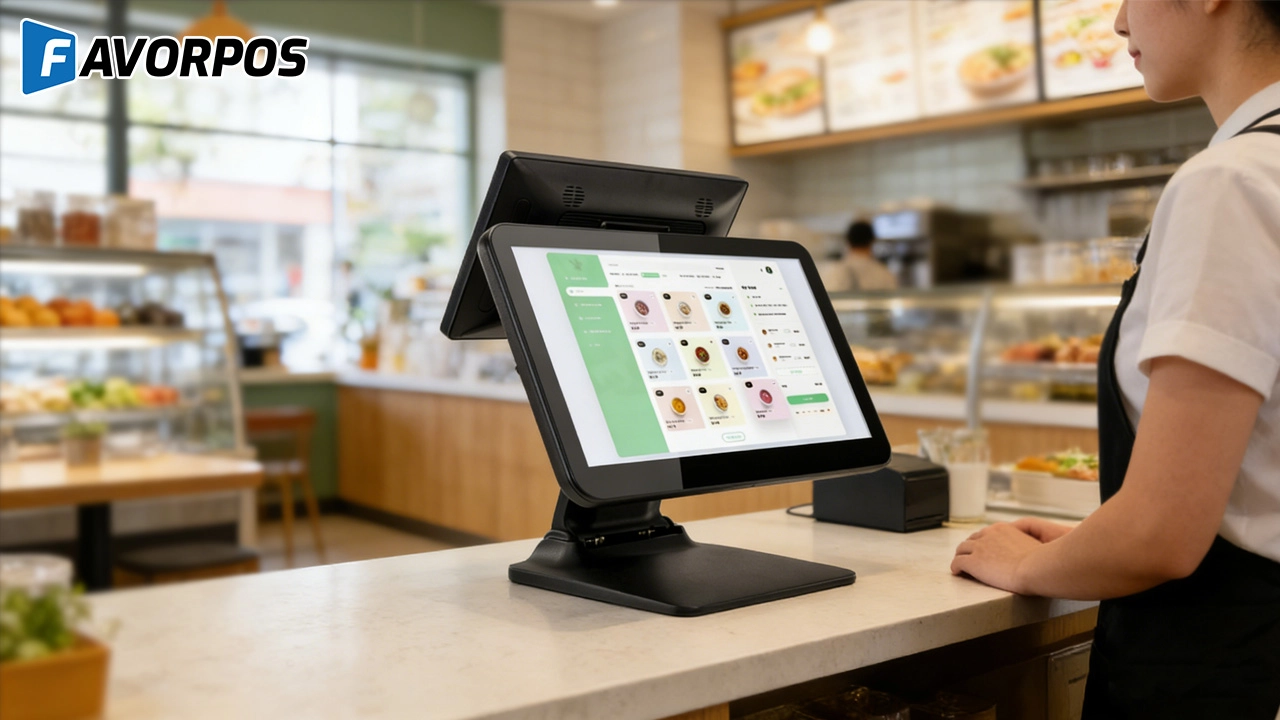
Beyond Checkout: How a 15.6-Inch Aluminum POS System Redefines Retail Efficiency
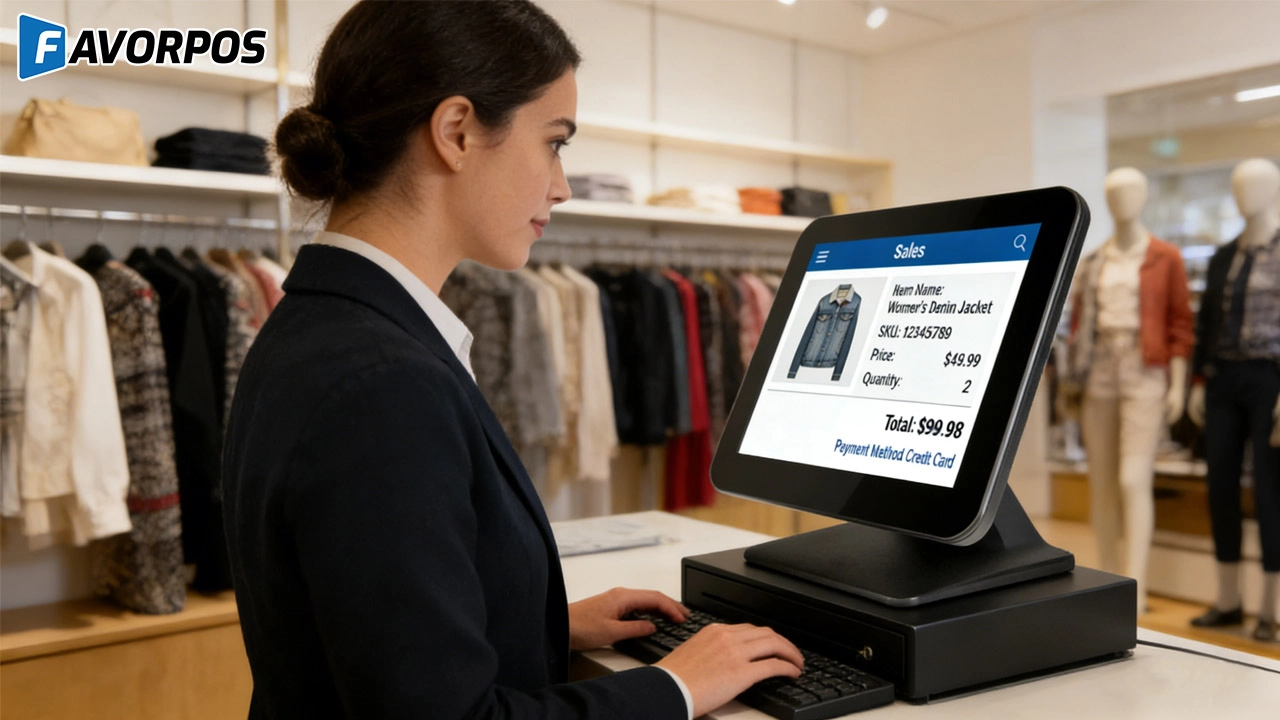
Understanding 15-Inch Aluminum POS Terminals in Modern Commercial Use
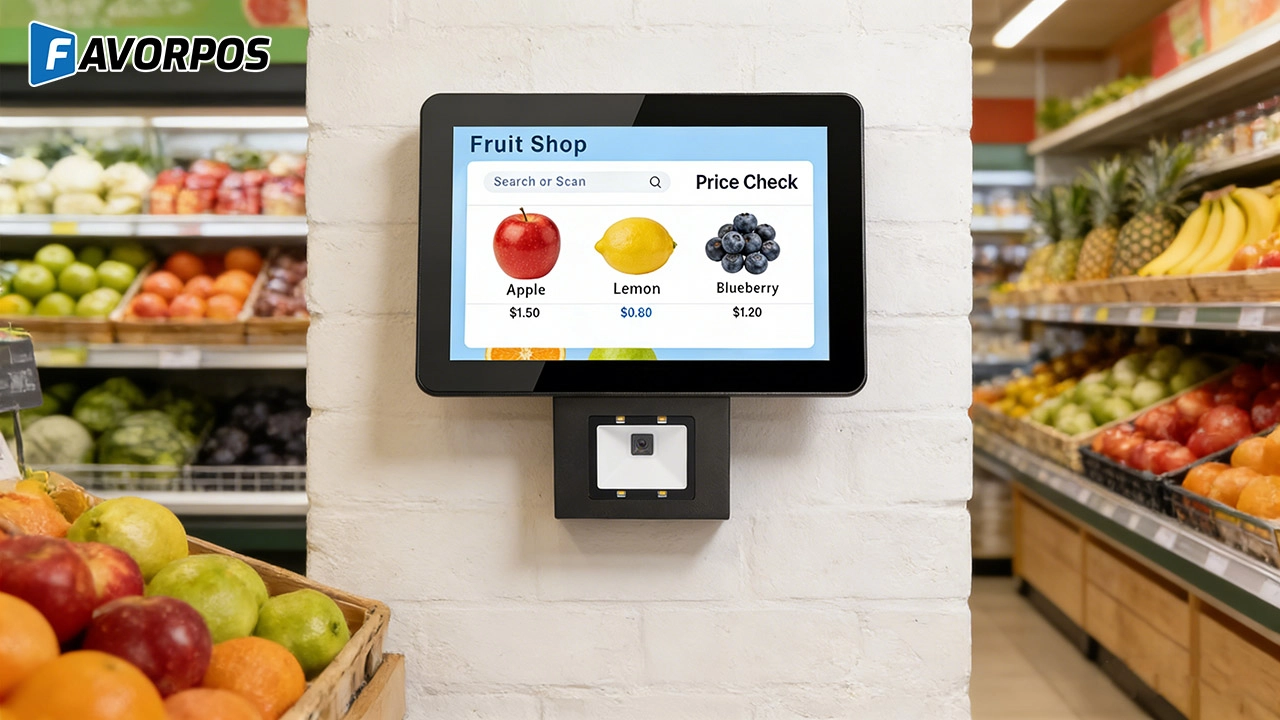
The Smart Way to Check Prices: How a 10.1-Inch Wall-Mounted Price Checker Transforms Retail Stores
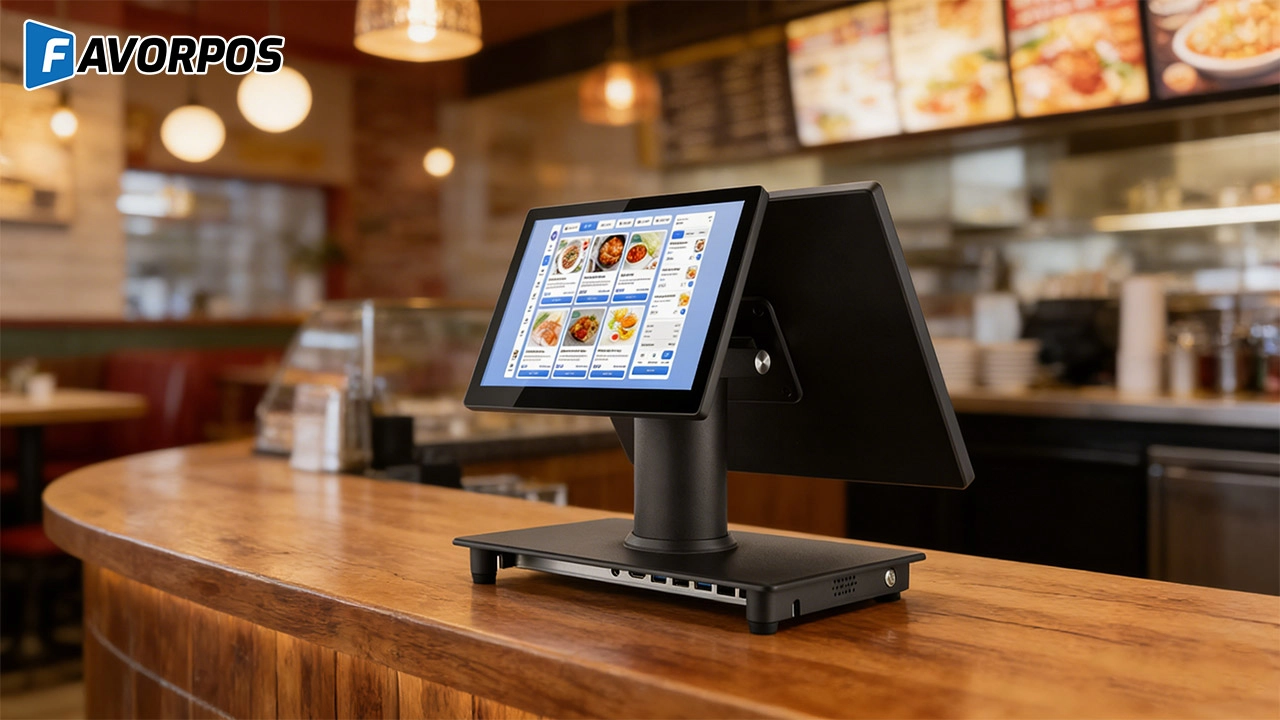
A Smarter Checkout Experience: The 15-Inch Dual-Screen POS Built for Modern Retail
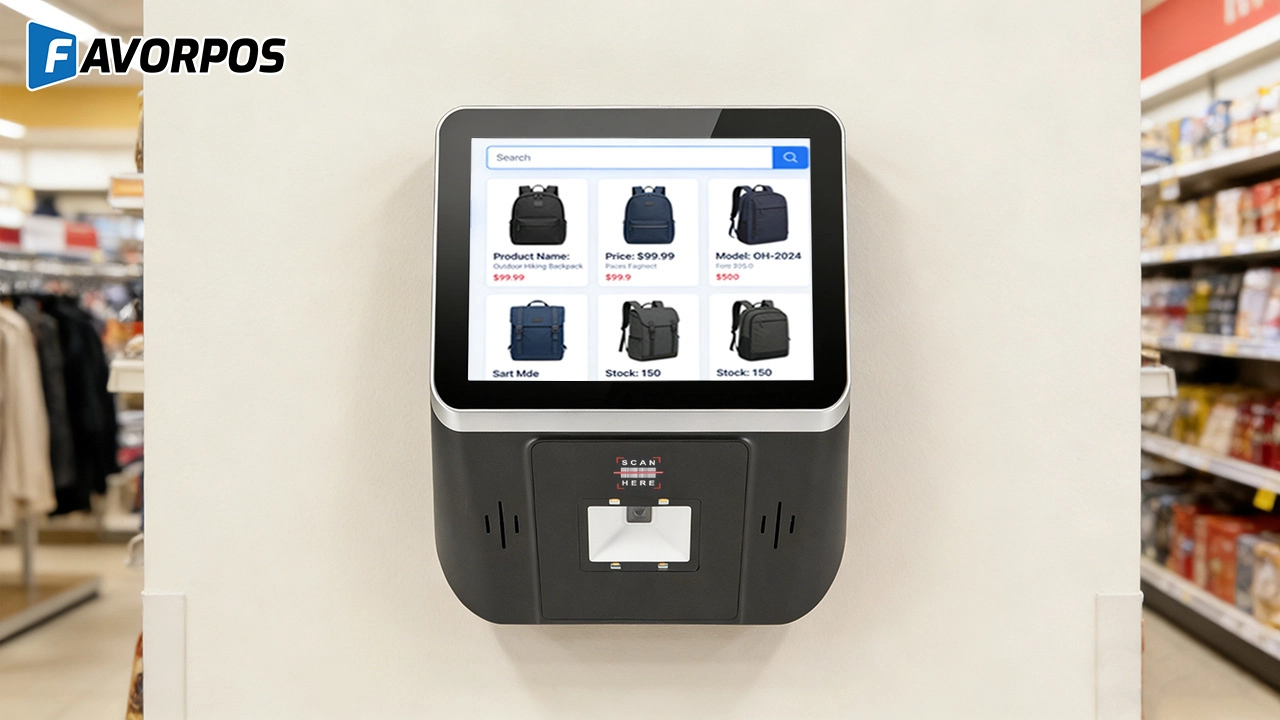
8-Inch Smart Price Checker: A Small Device Powering Smarter Retail Spaces
For Distributor
What kind of support will I receive as a reseller?
As a reseller, you will receive comprehensive support, including product training, technical assistance, and support from a dedicated account management team.
For ODM
What is the process of ODM service?
Our ODM service process includes the following steps:
1. Preliminary consultation: Discuss project goals, needs and vision with customers.
2. Design and development: Develop and confirm product design.
3. Prototyping & Testing: Prototypes are made, tested and designs are optimized.
4. Production: Carry out mass production, following quality standards and production schedules.
5. Logistics & Delivery: Manage logistics to ensure that products are delivered on time.
6. Post-production Support: Provide technical support and maintenance services.
For Government and Public
How does your system ensure data security?
We use advanced encryption and security measures to protect all financial and personal data, ensuring compliance with industry standards and regulations.
For company
Can I visit your factory?
Certainly, welcome to visit our factory at any time.
For E-commerce
Can I manage multiple online stores from one system?
Yes, our POS system supports multi-location and multi-store management, allowing you to centrally manage all e-commerce operations.
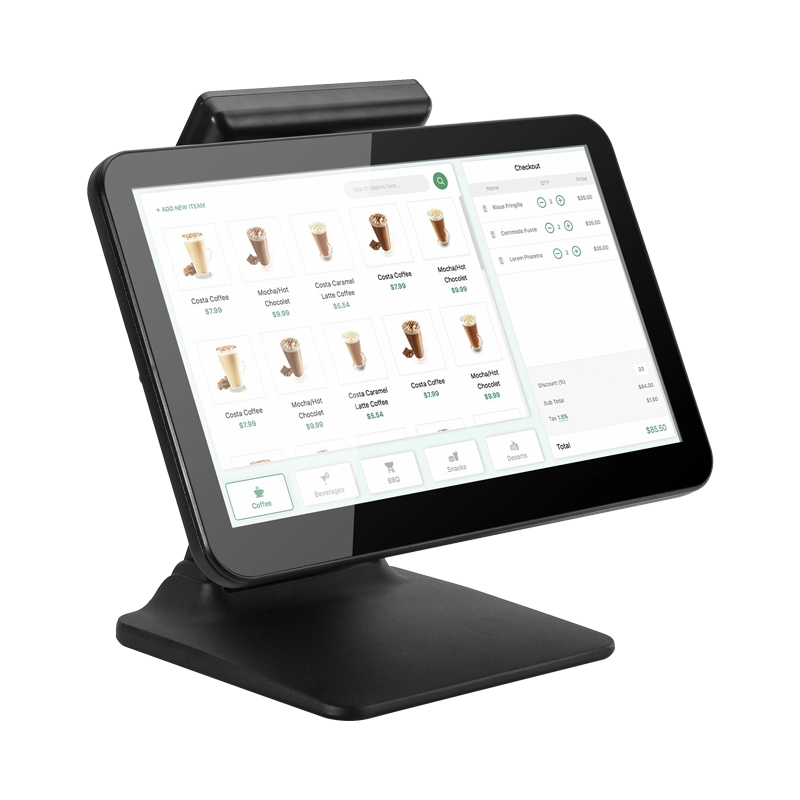
15.6 Inch Windows POS Terminal with VFD Display, Foldable Aluminum Stand Touch Screen POS for Retail & Hospitality
This 15.6-inch POS terminal is built to meet the needs of modern retail and hospitality environments. Powered by a stable Windows operating system, it ensures smooth performance for various point-of-sale applications. The device features a crisp, responsive touch screen and a built-in VFD customer display, allowing customers to view transaction details clearly. Its aluminum alloy stand offers a sleek, professional appearance while providing enhanced durability and stability for busy checkout counters. Ideal for retail stores, restaurants, and service-based businesses, this POS machine delivers a reliable and customer-friendly checkout experience.
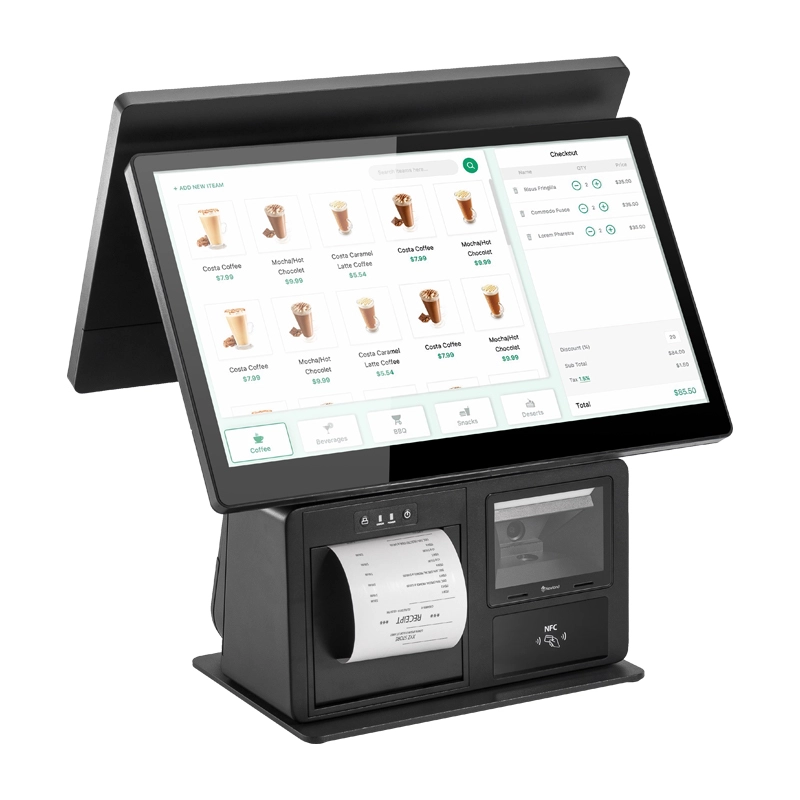
Point of Sale System with Thermal Printer All in One Pos Dual Touchscreen Pos with Barcode Scanner Supplier
FAVORPOS presents the all-in-one Point of Sale System with Thermal Printer, featuring dual touchscreens and an integrated barcode scanner. As a leading POS with NFC factory and barcode scanner supplier, we deliver reliable, efficient solutions tailored for your business needs.
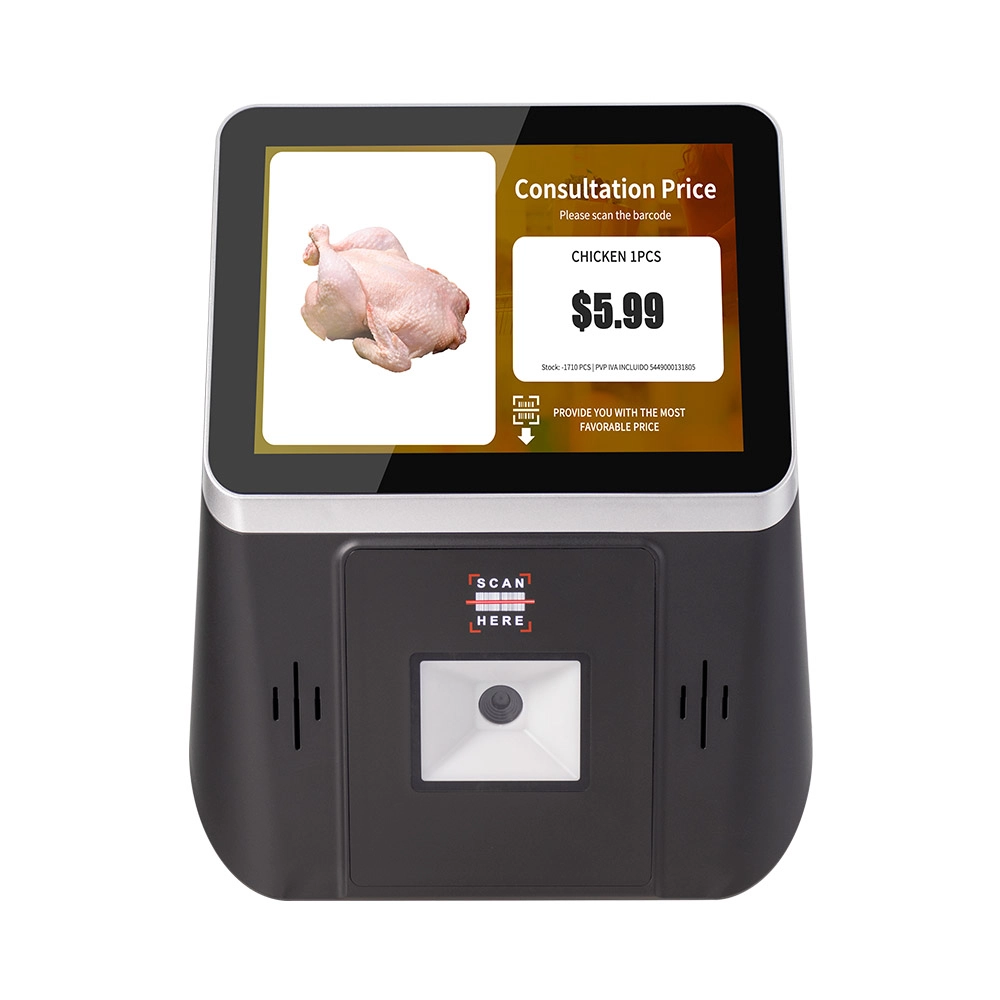
8 inch Wall Mount Price Checker with Scanner Android Windows Factory
Our 8-inch Wall Mount Price Checker is designed for optimal convenience in retail spaces, featuring a sleek design that fits seamlessly into any environment. Compatible with both Android and Windows, this unit includes an integrated scanner for quick and accurate price checks. Its wall-mounted design saves counter space while providing easy access for customers. Ideal for enhancing efficiency and improving the shopping experience.
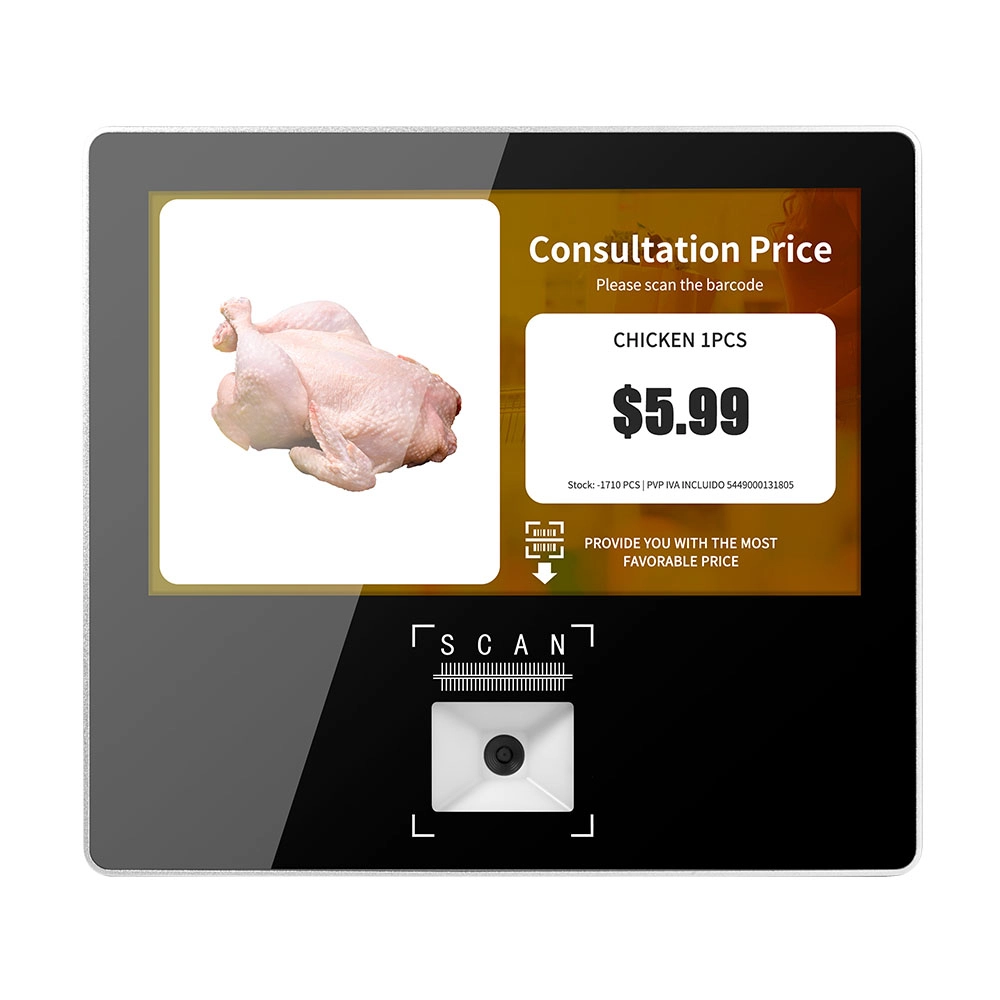
Metal 11.6 inch Price Scanner Machine Android Windows with Wifi Supplier
FAVORPOS Metal 11.6-inch Price Scanner Machine, designed for durability and efficiency in retail environments. This versatile device operates on both Android and Windows, providing seamless functionality for various applications. With built-in Wi-Fi connectivity, it allows for quick access to pricing data and updates. The 11.6'' display ensures clear visibility for easy operation, making it perfect for price checking and inventory management. Enhance your retail experience with this reliable and robust price scanner from a trusted supplier!
Get in touch
Interested in becoming a POS system dealer? Contact us for more information and start the process of joining our dealer network.
We look forward to working with you to expand the market together.


Copyright © 2025 Favorpos All Rights Reserved.
