
How to set up a POS desktop system step-by-step for restaurants?
- 1) How do I configure an offline-first POS desktop system for restaurants to avoid sales loss during internet outages?
- 2) What is the step-by-step process to integrate kitchen display system (KDS) and receipt printers with a POS desktop system running Windows?
- 3) How to securely set up payment processing (EMV, PCI DSS) on a POS desktop system while minimizing PCI scope?
- 4) What network topology and firewall rules should I use to sync multiple POS desktop terminals in a restaurant without slowing the network?
- 5) How to migrate existing menu, inventory, and sales history into a new POS desktop system without disrupting service?
- 6) What are the maintenance routines and monitoring tools for a POS desktop system to reduce downtime and ensure PCI compliance?
1) How do I configure an offline-first POS desktop system for restaurants to avoid sales loss during internet outages?
Designing an offline-first pos desktop system prevents revenue loss and order chaos when the internet drops. Steps and considerations:
Local database and transaction queueing: Deploy a lightweight local database on the POS terminal (SQLite, local MS SQL Compact, or an on-premise PostgreSQL/MySQL) that records every sale, payment status, and order state. The restaurant POS software must support transaction queueing so sales are accepted offline and flagged for sync.
Atomic write and journaling: Ensure the POS writes transaction records atomically with journaling enabled to avoid half-complete sales during power loss. Test with simulated power interruptions.
Secure temporary storage for payments: For card-present EMV terminals that support integrated payments (IPT) or terminal-hosted processing, keep the payment authorization handled by the payment terminal to reduce PCI scope. If the POS temporarily holds tokenized payment references, ensure token storage is encrypted and never store raw PANs.
Two-way sync and conflict resolution: Implement deterministic sync rules: server wins for catalog changes (menu prices), terminal wins for closed sales. Use timestamps and incremental deltas. Maintain an audit log for reconciliation.
Automatic retry and background sync: POS should attempt automatic retries when connectivity returns. Configure exponential backoff and transaction batching to avoid network storms.
Reconciling sales after reconnect: Provide reconciliation tools that list offline transactions with sync status; support manual re-submit and duplicate-detection using unique transaction IDs.
Testing and failover drills: Run periodic outage drills (simulate WAN down) to validate offline workflows, KDS printing, and cashier procedures. Document manual steps staff must follow during prolonged outages.
Estimated implementation: 4–12 hours integration for a single terminal depending on software support; larger multi-terminal sync requires additional network configuration and testing.
2) What is the step-by-step process to integrate kitchen display system (KDS) and receipt printers with a POS desktop system running Windows?
Integrating a KDS and receipt printers with a Windows-based pos desktop system requires hardware selection, driver configuration, port mapping, and testing.
Step-by-step:
Inventory hardware types: Decide between USB, Ethernet (network) or Serial (RS232) printers for receipts; KDS is typically an Android/Windows tablet or networked display. Choose ESC/POS compatible printers for receipt printing.
Install drivers and firmware: For Windows terminals, install manufacturer-supplied drivers or generic ESC/POS drivers. Firmware updates on printers and KDS devices often resolve compatibility issues—apply vendor-supplied stable firmware.
Assign static IPs (for network printers/KDS): Put KDS and Ethernet printers on the same LAN subnet and assign static addresses or DHCP reservations in the router to avoid IP churn.
Configure ports and queues: For serial printers configure COM port settings (baud rate, parity). For Ethernet printers use RAW (port 9100) or LPD depending on vendor. Create named printer queues in Devices & Printers and test print.
Integrate with POS software: In POS configuration, map order types/recipe categories to KDS screens (e.g., appetizers to Grill KDS). Set routing rules for printers: receipts to front-counter, kitchen tickets to kitchen-printer or KDS.
Implement fallback printing: If KDS is down, route orders to a physical kitchen receipt printer automatically. The POS should allow priority routing and failover rules.
Test end-to-end: Place test orders for all flow paths (dine-in, takeout, modifiers, voids). Validate that modifiers and seat numbers display correctly on the KDS and print on receipts.
Logging and alerts: Enable error logging for printer timeouts and notify managers if kitchen printing/KDS fails.
Common pitfalls: improper COM settings, DHCP IP changes, incompatible printer command sets, and insufficient buffer sizes for large ticket prints. Use wired connections for fixed kitchen devices for reliability.
3) How to securely set up payment processing (EMV, PCI DSS) on a POS desktop system while minimizing PCI scope?
Security and compliance are non-negotiable. Follow these practical steps to secure EMV payments and reduce your PCI scope:
Use certified payment integrations: Deploy an integrated payment terminal that performs EMV and PIN processing on-device (also called standalone PIN entry device or an integrated PED). When the terminal does the card interaction and the payment processor returns a token, the POS never sees raw card data.
Implement P2PE or payment gateway tokenization: Strong solutions are Point-to-Point Encryption (P2PE) or gateway tokenization. P2PE encrypts card data from the terminal to the payment processor (reducing PCI scope). Validate vendor P2PE certification.
Follow PCI DSS 4.0 requirements: Ensure network segmentation, access controls, strong authentication, patching, logging, and encryption for in-scope systems. Maintain unique user accounts and multi-factor authentication for administrative access.
Software validation: Use POS software that is PCI Secure Software compliant or listed by your payment processor. Avoid storing cardholder data; if retained, use strong cryptography per PCI rules.
Secure network: Put payment terminals on a separate VLAN with restricted access to the rest of the LAN. Limit ports and protocols in firewall rules; allow only necessary outbound connections to payment gateways.
Regular testing and certification: Conduct quarterly vulnerability scanning (ASV scans) and annual PCI SAQ or ROC as required by merchant level. Maintain logs for forensic purposes.
Staff training and processes: Train staff on card handling, EMV prompts, and spotting tampering. Implement regular terminal inspections for skimmers.
By combining integrated EMV terminals, P2PE/tokenization, and network segmentation, you significantly minimize PCI scope and lower compliance overhead.
4) What network topology and firewall rules should I use to sync multiple POS desktop terminals in a restaurant without slowing the network?
A deterministic network topology supports low-latency syncing across terminals and peripherals.
Recommended topology:
Core wired LAN: Use a managed gigabit switch to connect POS terminals, kitchen devices, and the local server. Prefer wired Ethernet for POS terminals to minimize packet loss.
Separate VLANs: Create VLANs for POS terminals, kitchen devices (KDS/printers), guest Wi‑Fi, and back‑office systems. This isolates traffic and reduces broadcast noise.
DHCP reservations/static IPs: Reserve IPs for devices or assign static IPs for printers, KDS, and the POS server to avoid address churn.
QoS and multicast considerations: Prioritize POS traffic and real-time order traffic using QoS on managed switches if the restaurant uses bandwidth-heavy services. Avoid multicast for syncing unless vendor recommends it.
Firewall rules (minimum necessary):
- Allow internal TCP/UDP ports used by POS software and printers (e.g., 9100 for RAW printing).
- Allow POS terminals outbound HTTPS (443) to your cloud services/payment gateways only.
- Block inbound requests from guest Wi‑Fi to POS VLAN.
- Restrict SSH/RDP to management VLAN and require MFA.
Bandwidth needs: POS data is low-bandwidth; typical restaurant LAN traffic is dominated by kiosks, streaming, or guest traffic. A 100 Mbps local network is sufficient for most operations, with WAN upload speeds of 5–10 Mbps adequate for cloud sync unless you run high-volume cloud reporting.
Ensure redundancy: For multi-terminal sync, a local on-premise sync server or master terminal reduces reliance on WAN. Use scheduled backups and replicate to cloud backup during off-peak hours.
5) How to migrate existing menu, inventory, and sales history into a new POS desktop system without disrupting service?
A controlled migration minimizes service disruption and data loss. Follow this methodology:
Audit existing data: Extract current menu, SKUs, modifiers, prices, supplier codes, and inventory counts. Export sales history and receipts in CSV or native export formats.
Map fields and clean data: Create a field-mapping spreadsheet that aligns old fields to the new POS schema (SKU, tax categories, modifiers, prep times). Clean duplicates, normalize naming, and standardize units of measure.
Import in stages: Import master data first (items, categories, taxes), then inventory opening balances, then historical sales if required for reporting. Many desktop POS systems allow CSV import; test with a small subset first.
Reconcile inventory: After importing opening balances, run a physical stock count and reconcile variances. Use the POS inventory management to apply adjustments and verify costing.
Parallel run and shadow mode: Run the new POS in shadow mode during a low-traffic shift where staff enters orders simultaneously in both systems; or run new POS live at one station while the rest use old system.
Cutover window: Choose a low-traffic period (e.g., before lunch or Monday morning) for final cutover. Freeze price/menu changes on the legacy system during migration.
Preserve historical reporting: If full sales history needs to be preserved, import summarized historical records or retain legacy reports. Full transactional migration is possible but requires careful mapping and often professional services.
Staff training and SOPs: Train staff on the new workflows, receipt formats, refunds/voids, and inventory adjustments before full launch.
Typical timeline: Small restaurants can migrate in 1–3 days; multi-location operations with integrations require 1–4 weeks of planning and testing.
6) What are the maintenance routines and monitoring tools for a POS desktop system to reduce downtime and ensure PCI compliance?
Routine maintenance reduces failures and maintains compliance. Implement the following program:
Daily: Verify end-of-day (Z) reports, backup local transaction logs, confirm sync status for all terminals, and ensure printers and KDS are online.
Weekly: Apply OS and POS software patches in a test environment first, clear POS cache and logs, check antivirus signatures, and review exception/error logs.
Monthly: Review PCI-related controls: user accounts and access, password policies, and firewall rules. Audit terminal firmware versions and peripheral drivers.
Quarterly: Run external vulnerability scans (ASV) if required by your acquirer, test backups by restoring to a test machine, and perform inventory reconciliation.
Annually: PCI SAQ or ROC processing, penetration testing if required, and vendor security reviews.
Monitoring tools and practices:
RMM and alerting: Use Remote Monitoring and Management (RMM) to monitor CPU, disk space, service health, and network connectivity. Configure email/SMS alerts for service outages.
POS health dashboard: Maintain a dashboard showing sync status, terminal online/offline, queue depths, and printers offline counts.
Centralized logging: Send POS application logs to a centralized syslog or SIEM for tamper detection and forensic readiness.
Backup strategy: Keep nightly local backups and weekly cloud backups of the POS database and configuration files. Verify backups weekly.
Change control: Apply patches via a documented change process with rollback steps and scheduled maintenance windows.
Following these routines keeps your pos desktop system resilient and aligned with PCI DSS 4.0 expectations.
Conclusion
A professionally deployed pos desktop system for restaurants brings fast order processing, reliable offline operation, tight peripheral integration (receipt printer, KDS), secure EMV payments with tokenization/P2PE, predictable network behavior using VLANs, and repeatable migration and maintenance processes. These strengths reduce downtime, protect cardholder data, and improve kitchen throughput and inventory accuracy.
For a tailored quote and implementation plan, contact us at www.favorpos.com or email sales2@wllpos.com.
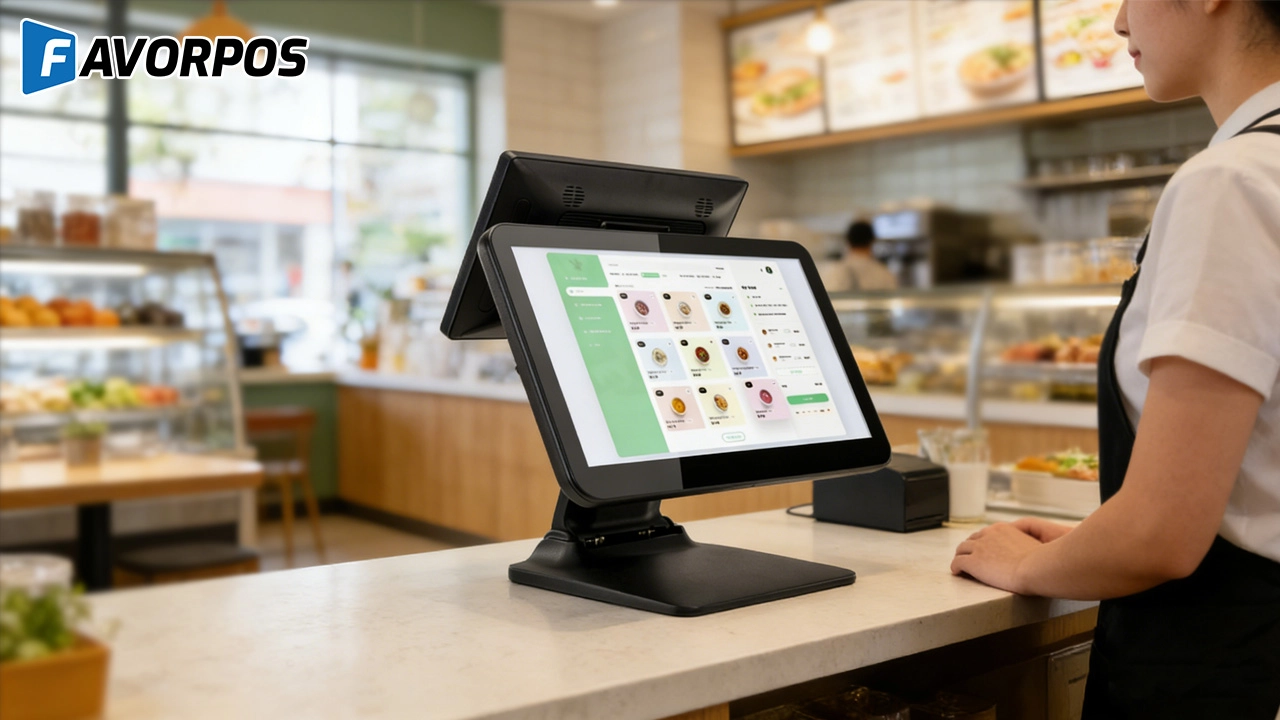
Beyond Checkout: How a 15.6-Inch Aluminum POS System Redefines Retail Efficiency
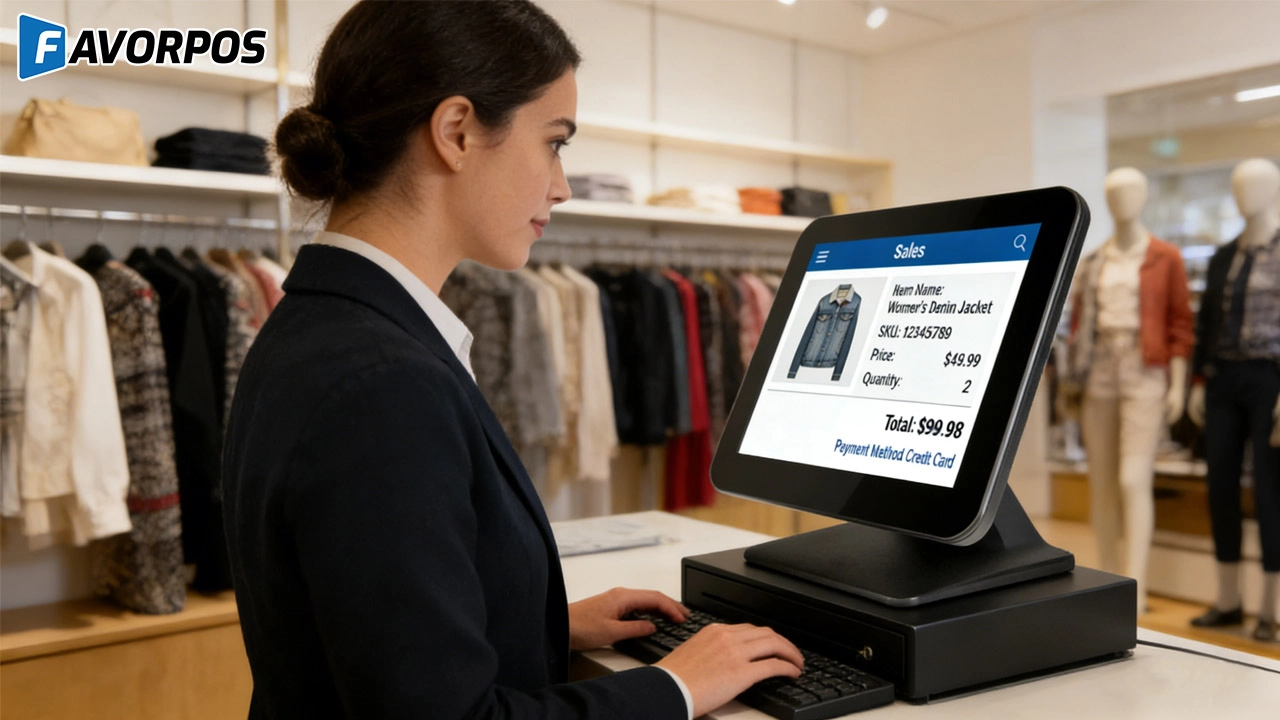
Understanding 15-Inch Aluminum POS Terminals in Modern Commercial Use
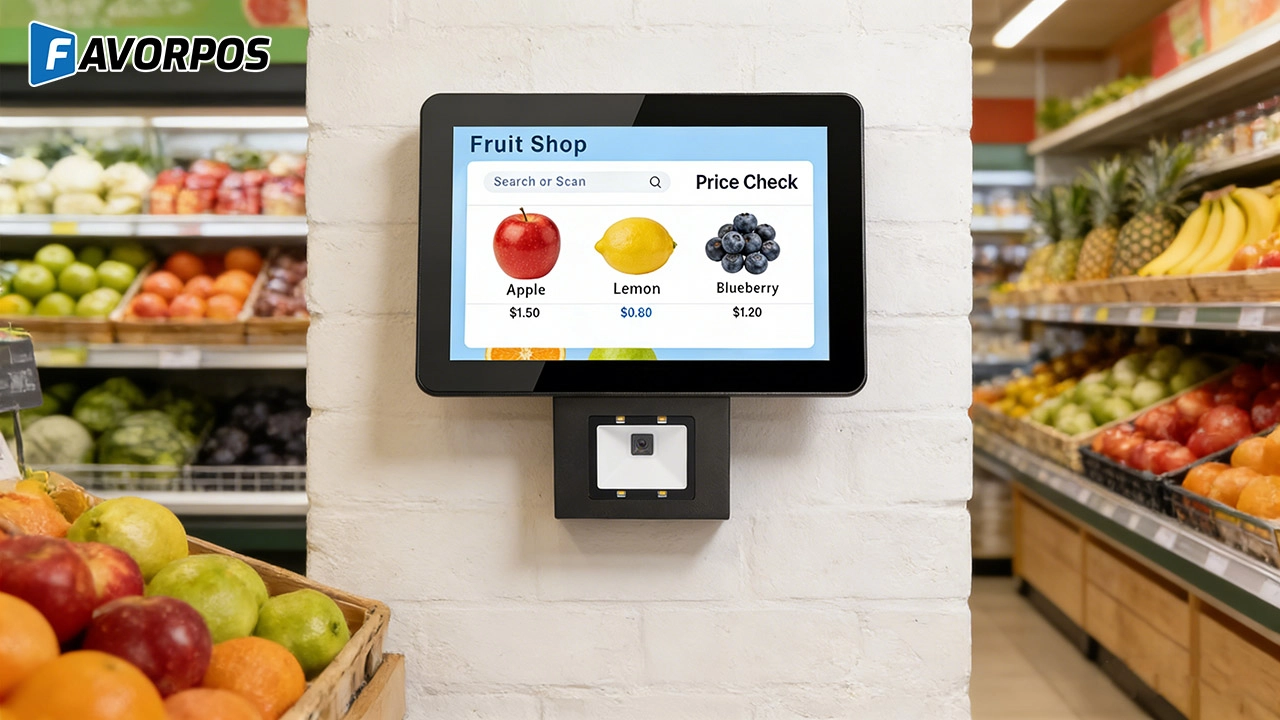
The Smart Way to Check Prices: How a 10.1-Inch Wall-Mounted Price Checker Transforms Retail Stores
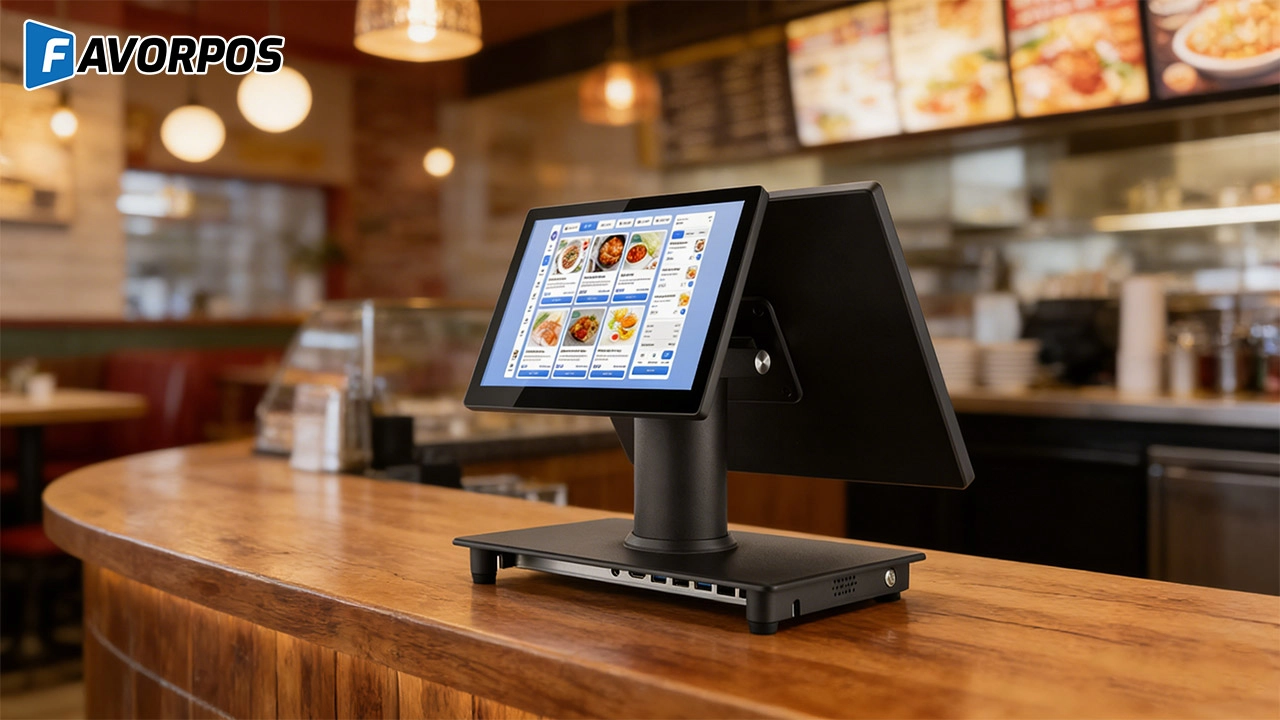
A Smarter Checkout Experience: The 15-Inch Dual-Screen POS Built for Modern Retail
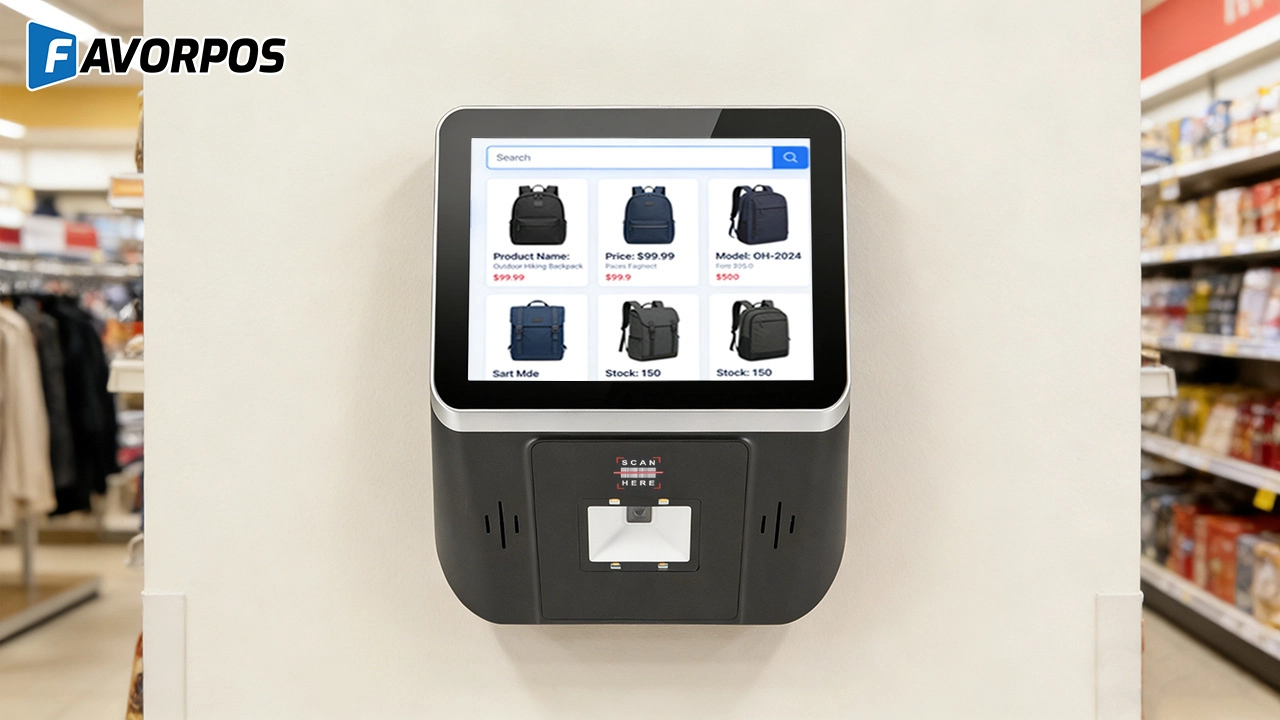
8-Inch Smart Price Checker: A Small Device Powering Smarter Retail Spaces
For E-commerce
How long does it take to implement a POS system?
Implementation time depends on the complexity of the customization, but it can usually be completed within a few weeks, including testing and training.
What kind of support do you provide after the system is implemented?
We provide 24/7 technical support, regular firmware updates, and ongoing maintenance to ensure that the system always maintains optimal performance.
For company
What are your shipping terms?
It is available to ship via express (DHL/FedEx/EMS/UPS/TNT), via air, train and sea. We will try our best to check the economic shipping way for you.
For Hotels
What types of reports can I generate through your POS system?
You can generate detailed real-time reports on sales, guest spending patterns, department performance, and more.
For ODM
What ODM services are provided?
We provide a full range of services from product concept development to production manufacturing according to customer requirements and designs. We are responsible for all aspects of product design, prototyping, production, quality control, etc. to ensure that your POS solution meets market needs and quality standards.
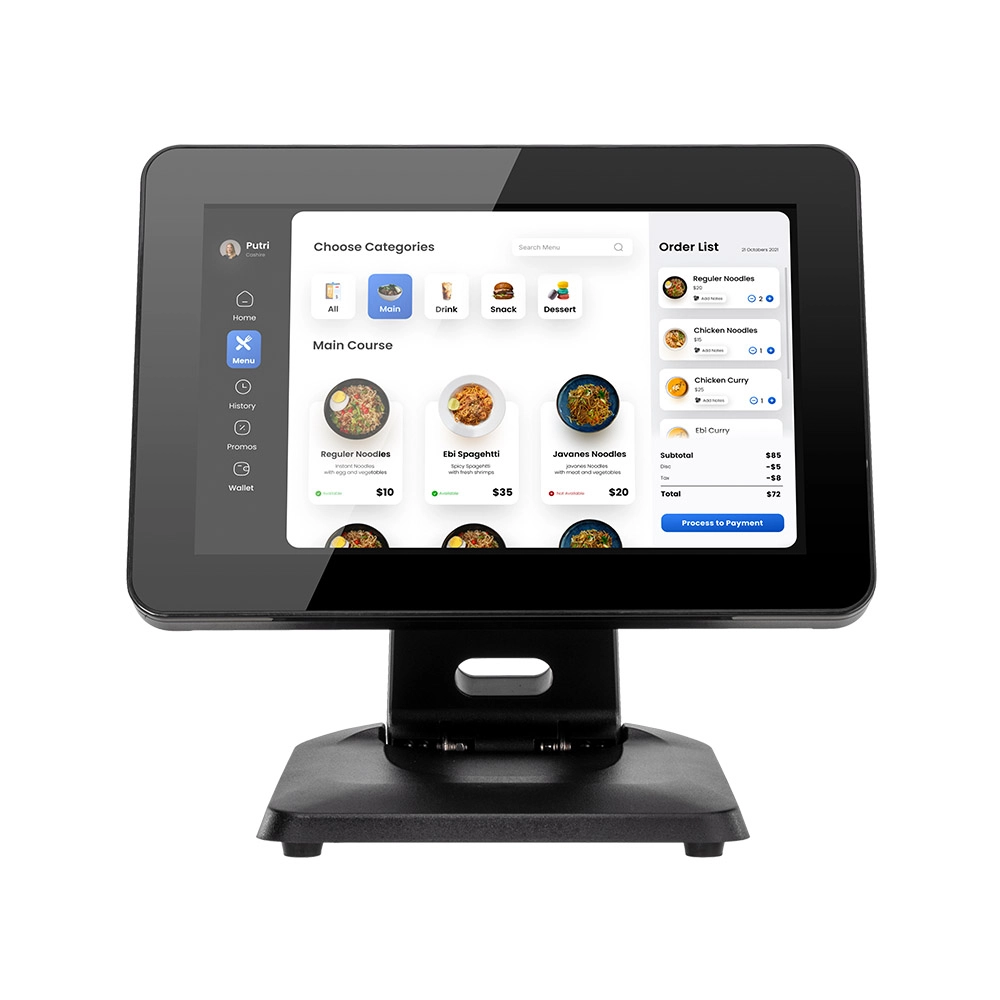
Desktop Touch Screen POS Systems 12.1'' Android Windows Manufacturer
Our Desktop Touch Screen POS Systems feature a 12.1'' display, supporting both Android and Windows platforms. Engineered for high performance. The intuitive touch interface simplifies transactions and enhances customer engagement. With a sleek design and robust construction, our POS systems are perfect for businesses looking to improve efficiency and elevate the shopping experience.
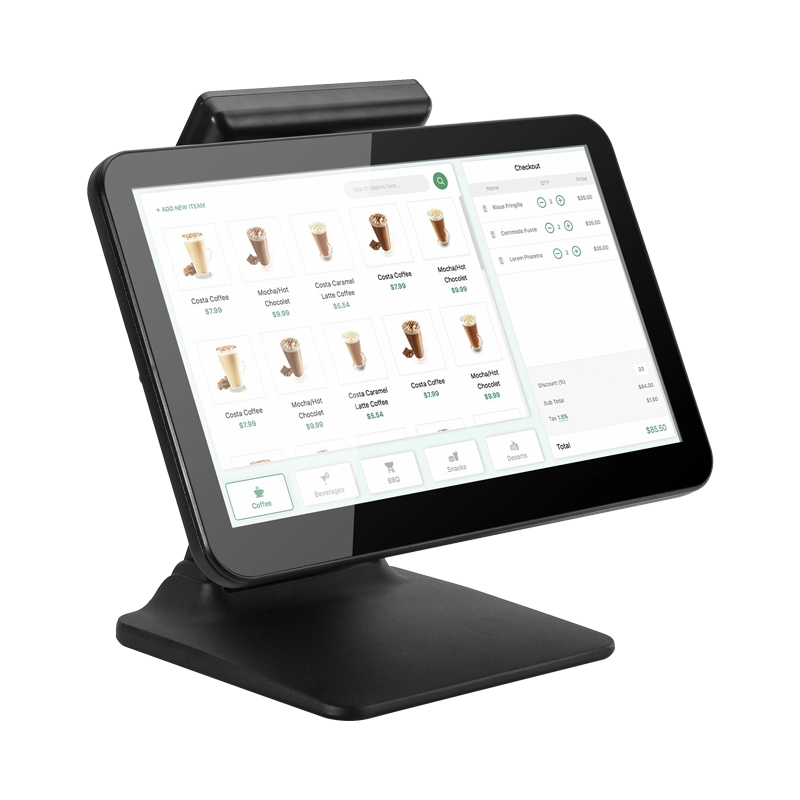
15.6 Inch Windows POS Terminal with VFD Display, Foldable Aluminum Stand Touch Screen POS for Retail & Hospitality
This 15.6-inch POS terminal is built to meet the needs of modern retail and hospitality environments. Powered by a stable Windows operating system, it ensures smooth performance for various point-of-sale applications. The device features a crisp, responsive touch screen and a built-in VFD customer display, allowing customers to view transaction details clearly. Its aluminum alloy stand offers a sleek, professional appearance while providing enhanced durability and stability for busy checkout counters. Ideal for retail stores, restaurants, and service-based businesses, this POS machine delivers a reliable and customer-friendly checkout experience.
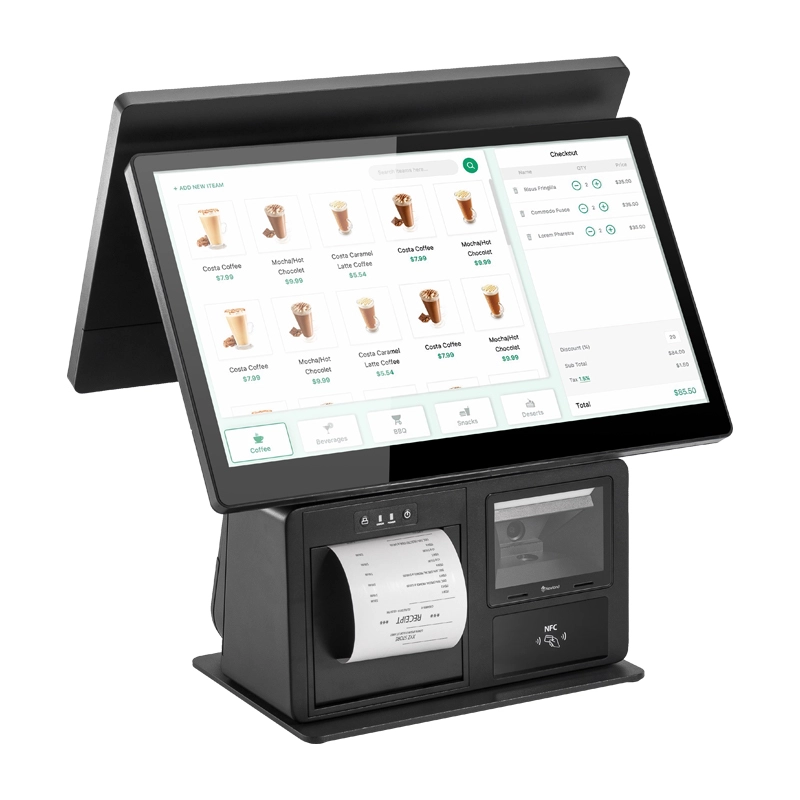
Point of Sale System with Thermal Printer All in One Pos Dual Touchscreen Pos with Barcode Scanner Supplier
FAVORPOS presents the all-in-one Point of Sale System with Thermal Printer, featuring dual touchscreens and an integrated barcode scanner. As a leading POS with NFC factory and barcode scanner supplier, we deliver reliable, efficient solutions tailored for your business needs.
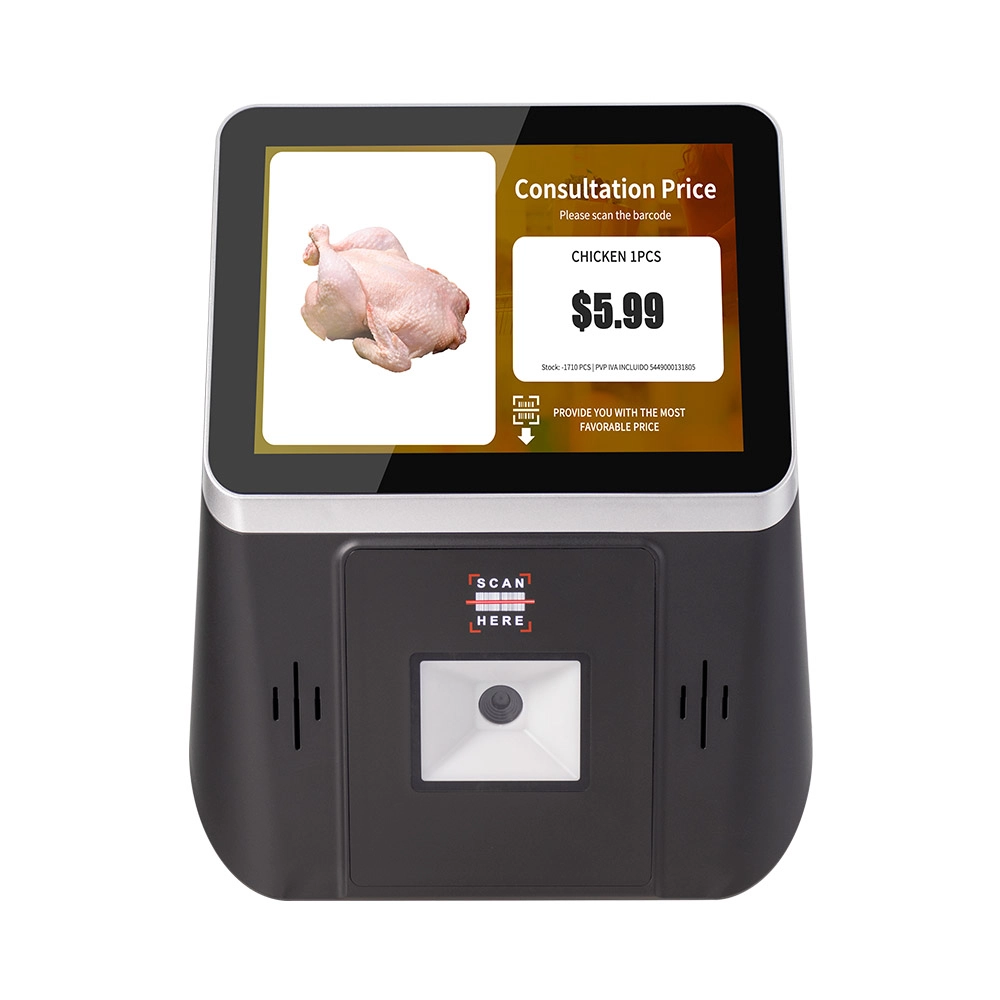
8 inch Wall Mount Price Checker with Scanner Android Windows Factory
Our 8-inch Wall Mount Price Checker is designed for optimal convenience in retail spaces, featuring a sleek design that fits seamlessly into any environment. Compatible with both Android and Windows, this unit includes an integrated scanner for quick and accurate price checks. Its wall-mounted design saves counter space while providing easy access for customers. Ideal for enhancing efficiency and improving the shopping experience.
Get in touch
Interested in becoming a POS system dealer? Contact us for more information and start the process of joining our dealer network.
We look forward to working with you to expand the market together.


Copyright © 2025 Favorpos All Rights Reserved.
