
Which desktop-based POS system is best for small retailers?
- 1) How can a desktop-based POS system reliably process card payments during internet outages while staying PCI-compliant?
- 2) What is the least-friction way to integrate legacy barcode scanners, thermal printers and RS-232 cash drawers with a Windows desktop POS without driver conflicts?
- 3) How do I size local database and hardware (CPU, RAM, SSD) for a Windows desktop POS to handle 10,000 SKUs and 2,000 daily transactions with fast search and reporting?
- 4) Which desktop-based POS system is best for small retailers with multiple outlets that need offline-first inventory sync and automatic conflict resolution?
- 5) How can small retailers migrate from Excel‑based invoicing and cash‑drawer logs into a desktop POS while preserving tax history and minimizing 2‑week downtime?
- 6) Which desktop-based POS system is best for small retailers focusing on low total cost of ownership, local data control, and simple inventory workflows?
1) How can a desktop-based POS system reliably process card payments during internet outages while staying PCI-compliant?
Problem: Small retailers need uninterrupted checkout during ISP outages, but accepting offline card approvals raises fraud and chargeback risk. The right approach balances availability, liability, and PCI scope.
Recommended architecture and best practices:
- Use a dedicated, PCI-compliant payment terminal (integrated via semi-integrated architecture) rather than routing raw card data through the local desktop POS. Semi-integration (terminal handles PAN and EMV; POS receives tokenized transaction IDs) minimizes PCI scope and is the industry-standard approach.
- Prefer tokenization and stored payment tokens. When online, tokens are created and stored on the payment processor/gateway. During outages, accept cash or implement a controlled offline card capture only when your processor supports secure offline authorization/tokenization. Note: true EMV offline authorization exists but is uncommon and usually requires specialized processor support and increased liability.
- If you must capture card data offline (rare), use an encrypted, tamper-evident PIN entry device (PED) or an approved offline EMV terminal. Avoid storing card data on the desktop—this creates full PCI scope and high audit cost.
- Implement transaction queuing on the desktop with robust retry logic and tamper-evident logs. When the internet returns, the system should batch-send queued, tokenized sales to the gateway and reconcile responses automatically.
- Operational controls: train staff on fallback procedures, have a printed or digital authorization log, and set clear limits for offline approvals (max amount, transaction count). Maintain receipts for each offline sale for reconciliation.
Real-world constraints: Most major processors require online authorization for EMV transactions. Offline EMV is rare and increases merchant liability. For small retailers, the safer, lower-cost route is a semi-integrated payment terminal plus queue-and-sync behavior for tokenized transactions, not local card storage.
2) What is the least-friction way to integrate legacy barcode scanners, thermal printers and RS-232 cash drawers with a Windows desktop POS without driver conflicts?
Problem: Old peripherals use serial ports or proprietary drivers that conflict with modern Windows drivers, leading to installation, printing, and drawer-kick failures.
Practical integration strategy:
- Prefer USB with USB-to-serial adapters that use stable, signed drivers (FTDI, Prolific). Avoid cheap, unsigned adapters—these create driver conflicts across Windows updates.
- Use industry-standard printer command languages. Most receipt printers speak ESC/POS or have OPOS/JPOS drivers. Choose a desktop POS that supports ESC/POS for broad compatibility with inexpensive thermal printers, and optionally OPOS for enterprise peripherals.
- Implement middleware or a small local service (POS peripheral agent) to abstract hardware differences. The agent exposes a simple REST or TCP API to the POS app and handles retries, firmware checks, and status reporting (paper out, offline). This reduces driver churn and isolates updates.
- For cash drawers, use drawers that accept a 12V or 24V pulse from the printer (standard) or drawers with USB adapters using recognized vendor drivers. Test drawer-kick timing carefully to avoid duplicate openings on retries.
- Keep firmware and signed drivers current. Maintain a hardware compatibility list (HCL) and tested Windows build for your POS image to avoid unexpected conflicts after OS updates.
Operational tip: Before purchase, run a 1–2 day pilot with your exact scanner/printer models to verify auto-printing, barcode symbology decoding, drawer kicks, and character encoding (UTF-8 vs ANSI), especially if you need multilingual receipts.
3) How do I size local database and hardware (CPU, RAM, SSD) for a Windows desktop POS to handle 10,000 SKUs and 2,000 daily transactions with fast search and reporting?
Problem: Under‑sized machines or database limits (e.g., free editions) will slow search, reporting, and cause sync backlogs. You need realistic sizing for inventory, sales velocity, and analytics.
Sizing checklist and guidelines:
- Database engine choice: Local deployments often use SQL Server (Express or Standard), MySQL/MariaDB, or SQLite for single‑station setups. Be aware SQL Server Express has a 10GB database limit per instance—adequate for many small stores but insufficient for large SKU catalogs or long sales history. Use SQL Server Standard or MySQL if you anticipate >10GB on-disk DB size.
- Storage: Use a modern NVMe or SATA SSD for low-latency read/write. Plan for at least 20–30GB free beyond your database size for logs, temp files, and OS. Example: 10,000 SKUs with images stored centrally will require far more space—store images on a network share or object store and keep the DB for structured data only.
- CPU/RAM baseline (single POS terminal with local DB and reporting):
- CPU: modern quad-core (or dual-core with strong single-thread performance) is sufficient.
- RAM: 8–16GB. For heavier reporting or on-machine analytics choose 16GB.
- Disk: 256GB SSD minimum; 512GB recommended if logs and local backups are kept on the same host.
- Search and responsiveness: Implement indexed SKU and barcode lookup fields, and use partial-match indexes or full-text search for client-side instant search. Avoid non-indexed scans over millions of rows.
- Reporting: Move heavy reports to a secondary reporting service or schedule them off-peak. For same-day sales analytics on the POS, implement pre-aggregated hourly counters to keep queries fast.
- Backups and replication: Keep transaction logs and daily backups. If using SQL Server Express, remember the 10GB limit and test database growth monthly. For multi-terminal local setups, use a server-class machine or dedicated on-prem server to host the central database, not a checkout PC.
Example setup for your stated load: For 10,000 SKUs and 2,000 daily transactions, a small on-prem server with a quad-core CPU, 16GB RAM, 512GB SSD, and MySQL or SQL Server Standard is a prudent starting point if you plan to retain 12+ months of sales history on-premise. If you plan to keep only 3–6 months locally and archive older data to a cloud store, SQL Server Express + 256GB SSD + 8GB RAM may suffice.
4) Which desktop-based POS system is best for small retailers with multiple outlets that need offline-first inventory sync and automatic conflict resolution?
Problem: Stores with intermittent connectivity need a desktop POS that supports offline-first operations, reconciles inventory across stores, and resolves SKU conflicts when two stores edit the same item offline.
Evaluation criteria (what to test and require from vendors):
- Offline-first architecture: The POS should operate locally against a master local database with a lightweight change-log (append-only journal). Changes are pushed to a central server when connectivity is available.
- Conflict resolution policy: The system must offer configurable resolution strategies—last-writer-wins, store-priority-master, or manual reconciliation queues. For inventory and price changes, a store-priority model (central overrides store edits unless flagged) or requiring approvals for price changes reduces risk.
- Granular sync: Sync SKUs, stock levels, and sales independently so slow networks don't block critical data. Use delta sync and compression to reduce bandwidth costs.
- Inventory integrity: Implement physical transfer workflows for inter-store transfers (transfer orders with receipts) rather than relying solely on automated stock adjustments to avoid phantom inventory. Include cycle count modules that reconcile against transactional data.
- Monitoring and alerts: The system should expose sync health, pending conflicts, and reconciliation queues in the admin UI and via email/SMS alerts for failed syncs > X hours.
Vendor selection approach: Shortlist desktop POS vendors that explicitly advertise offline-first multi-store capabilities and ask for a scripted demo using two isolated networks (simulate offline store, central server catch-up). Confirm they provide conflict logs and a sandbox for validating resolution rules. Avoid solutions that only claim “offline mode” without documented change-tracking and reconciliation procedures.
5) How can small retailers migrate from Excel‑based invoicing and cash‑drawer logs into a desktop POS while preserving tax history and minimizing 2‑week downtime?
Problem: Many small retailers track sales in spreadsheets and fear migration complexity and downtime, especially around tax reporting periods.
Step-by-step migration plan (minimize risk and downtime):
- Prepare and clean data: Normalize SKU identifiers, trim duplicates, standardize tax codes and customer names. Convert Excel date/times to ISO format and ensure numeric fields are consistent (no stray currency symbols).
- Map data model: Create a mapping document—Excel column -> POS field (SKU, description, cost, price, tax class, supplier). Decide which historical transactions must be imported (e.g., last 12 months) and which can remain archived offline.
- Import in phases: Start with master data (SKUs, tax rates, customers, suppliers) into a staging environment. Validate lookups and barcode associations.
- Import historic sales as read-only ledger entries: Many POS systems can store legacy transactions for reporting. If the POS supports a sales import API or CSV import, bring in historical sales to preserve tax reports. If not, export Excel summaries into your accounting package (e.g., QuickBooks) and keep detailed invoices archived.
- Parallel run: Run POS in parallel with current Excel process for 7–14 days. Use the POS for all live sales while continuing bookkeeping in Excel to verify totals match end-of-day reports. Reconcile and fix mismatches nightly.
- Cutover: After parallel run success, fully switch to POS. Keep backups of Excel files and a rollback plan for 48–72 hours (in case of critical errors). Schedule cutover during a quiet period (weekday morning) and ensure staff training beforehand.
Tax compliance tip: Ensure the POS can export tax reports in your jurisdiction’s required format and that transaction timestamps and invoice numbering meet local tax authority rules. If your country mandates fiscalization, ensure the POS supports approved fiscal printers or fiscal API certification.
6) Which desktop-based POS system is best for small retailers focusing on low total cost of ownership, local data control, and simple inventory workflows?
Problem: Small retailers want the best balance between purchase price, recurring fees, local control (on-premise), and easy inventory management without overpaying for enterprise features.
How to define “best” for your shop:
- Low TCO components to evaluate:
- Upfront software license vs subscription: On‑premise perpetual licenses have higher initial cost but lower annual fees; cloud subscriptions spread cost but increase long-term expense.
- Maintenance and support SLA: Annual maintenance (typically 10–25% of license) matters for updates, security patches, and helpdesk response.
- Hardware lifecycle: Use off-the-shelf POS terminals and standard peripheral brands to keep replacement costs low.
- Local data control: If keeping PHI or customer records locally is a priority, choose solutions that store data on a local server and offer optional encrypted offsite backups. Ensure the vendor documents backup procedures and access controls.
- Simple inventory needs: For small shops with straightforward replenishment, require SKU variants, reorder points, basic transfer orders, and barcode scanning. Avoid paying for multi-warehouse advanced planning if you don’t need it.
- Vendor evaluation checklist:
- Request a clear TCO breakdown for 3–5 years (license, hardware, payments, maintenance, backup, training).
- Ask for an HCL and a live reference from a similar-size retailer in your region.
- Confirm upgrade path and support SLA (response time, remote access, on-site options).
Recommendation framework: There is no single “best” universal product; the best fit depends on your priorities. For minimal TCO and maximum local control, favor a Windows-based on-premise desktop POS that uses a local SQL database, supports semi-integrated card terminals (to reduce PCI scope), and provides straightforward inventory features (reorder points, barcode scanning, transfer orders). Validate with a 14‑day pilot and require a written TCO and support SLA before purchase.
Summary — advantages of desktop-based POS systems
Desktop-based (on-premise) POS systems give small retailers strong local data control, lower latency at the checkout, offline-first reliability, and less dependency on continuous cloud connectivity. They allow direct integration with local printers, cash drawers, and legacy peripherals, offer predictable licensing models (perpetual or hybrid), and let you architect sync and backups to match your bandwidth and compliance needs. For retailers prioritizing speed, control, and configurable offline workflows, a well-chosen desktop POS with semi-integrated payments, a tested hardware compatibility list, and a clear upgrade path delivers the best balance of reliability, security (reduced PCI scope through tokenization), and predictable TCO.
Contact us for a tailored quote and pilot plan: visit www.favorpos.com or email sales2@wllpos.com.
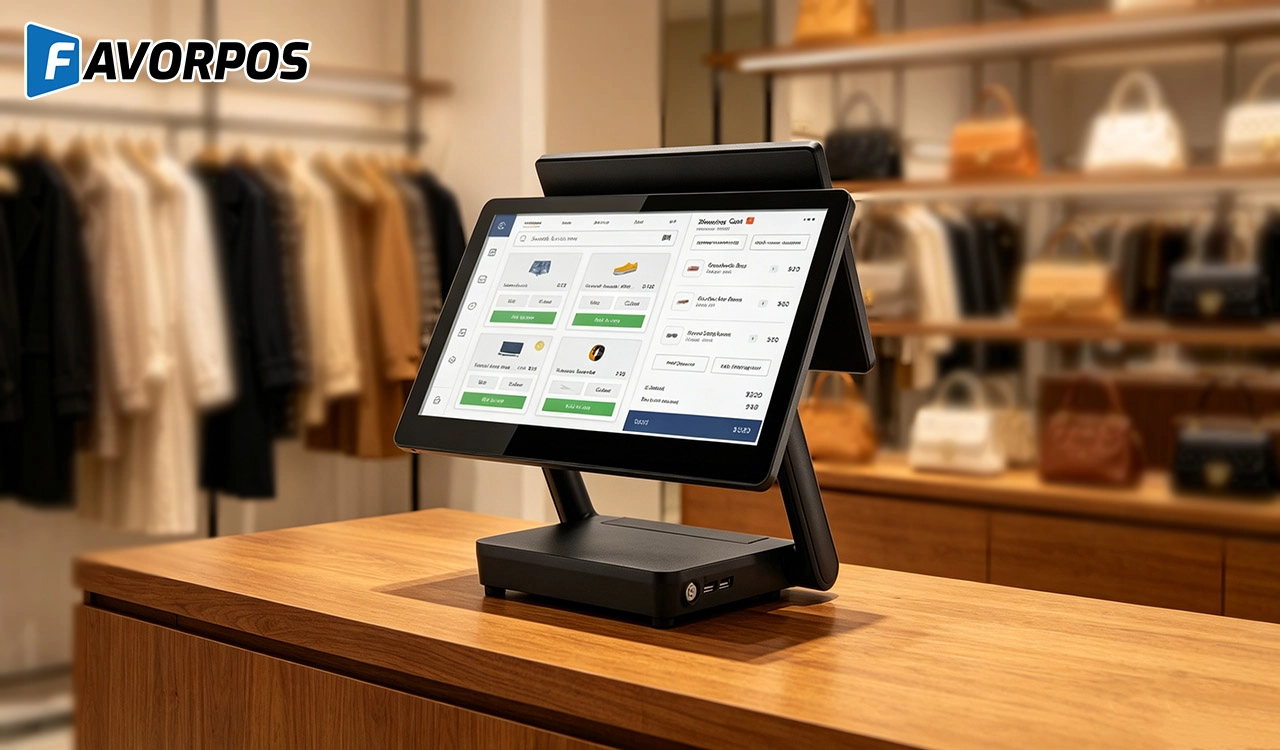
Why a 15.6” Touch POS Terminal Is Becoming the New Standard in High-Traffic Retail
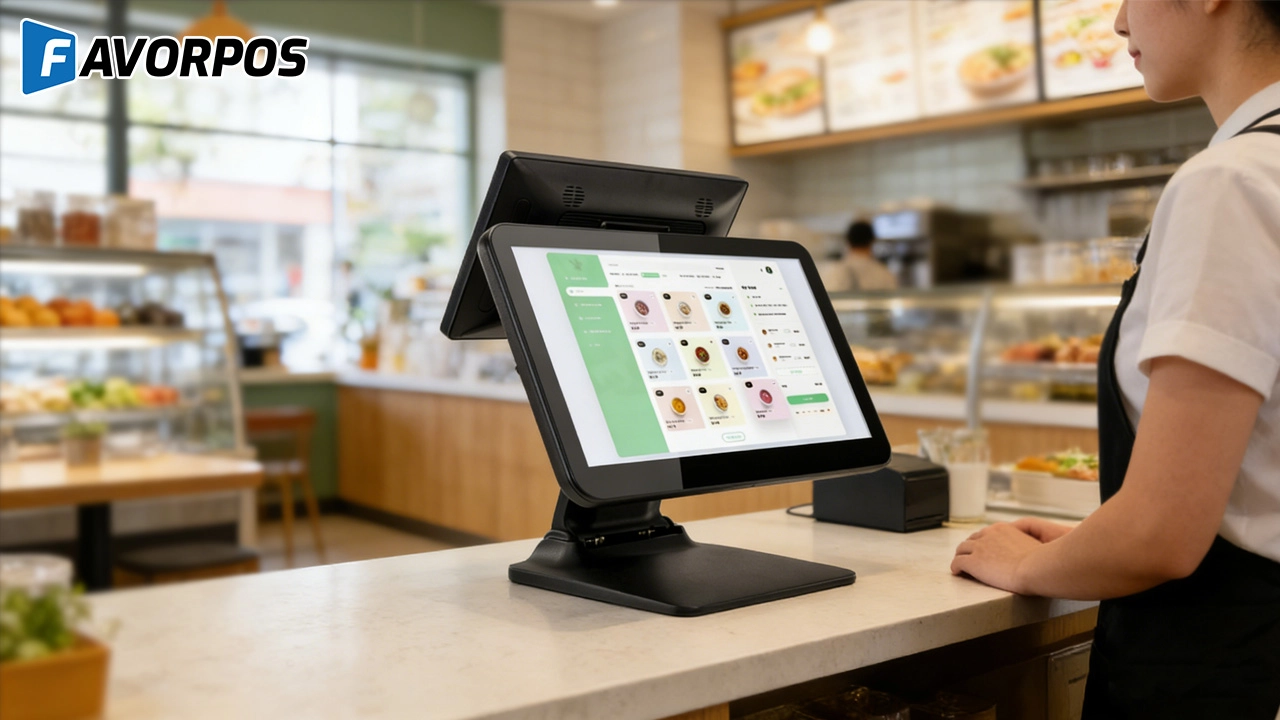
Beyond Checkout: How a 15.6-Inch Aluminum POS System Redefines Retail Efficiency
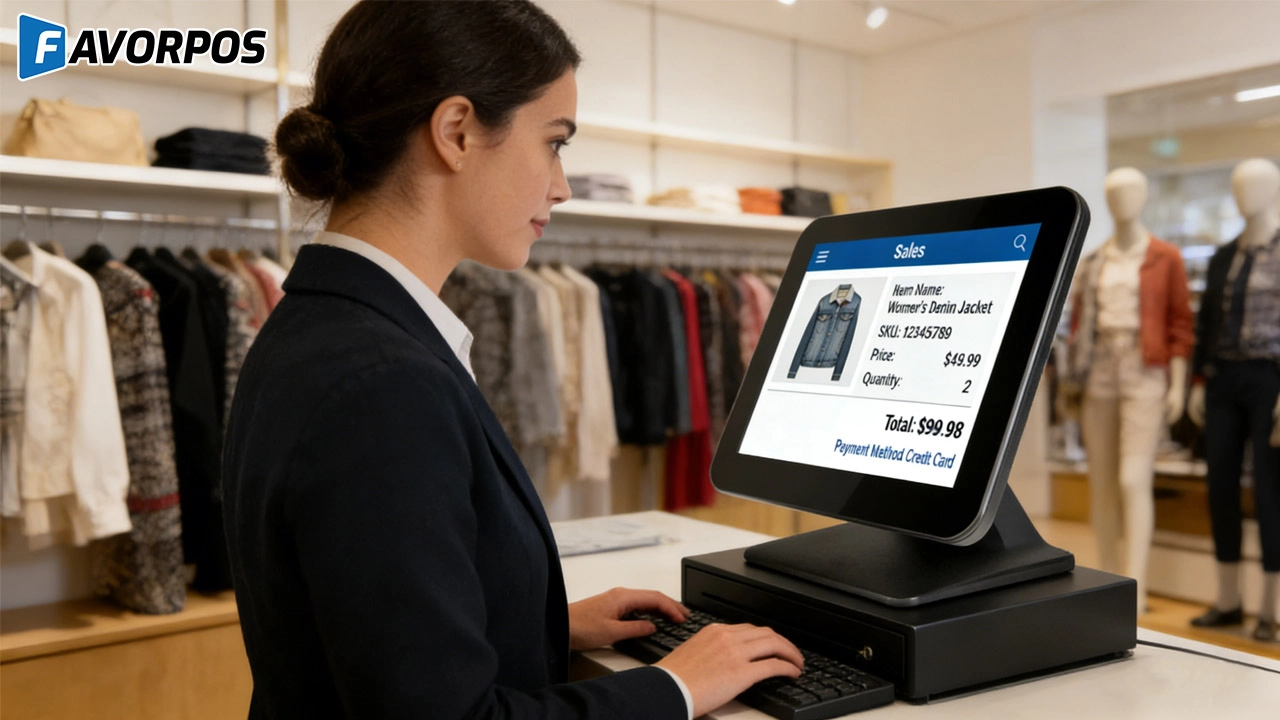
Understanding 15-Inch Aluminum POS Terminals in Modern Commercial Use
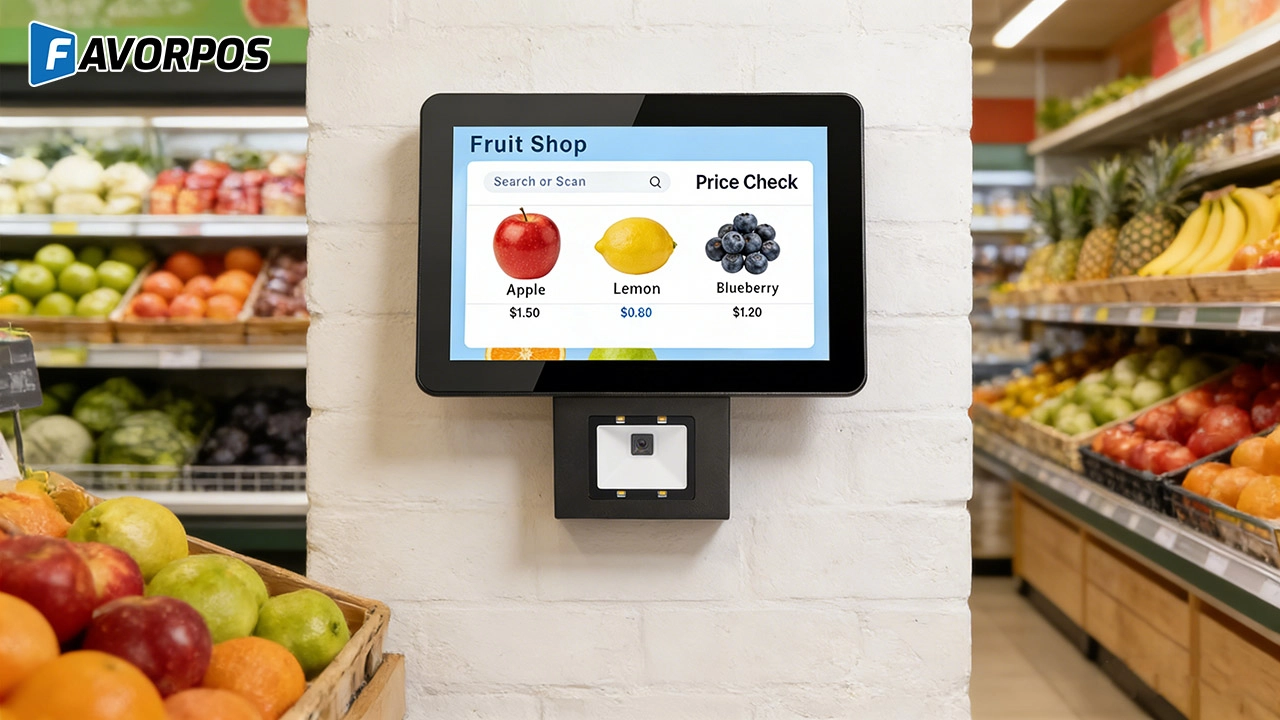
The Smart Way to Check Prices: How a 10.1-Inch Wall-Mounted Price Checker Transforms Retail Stores
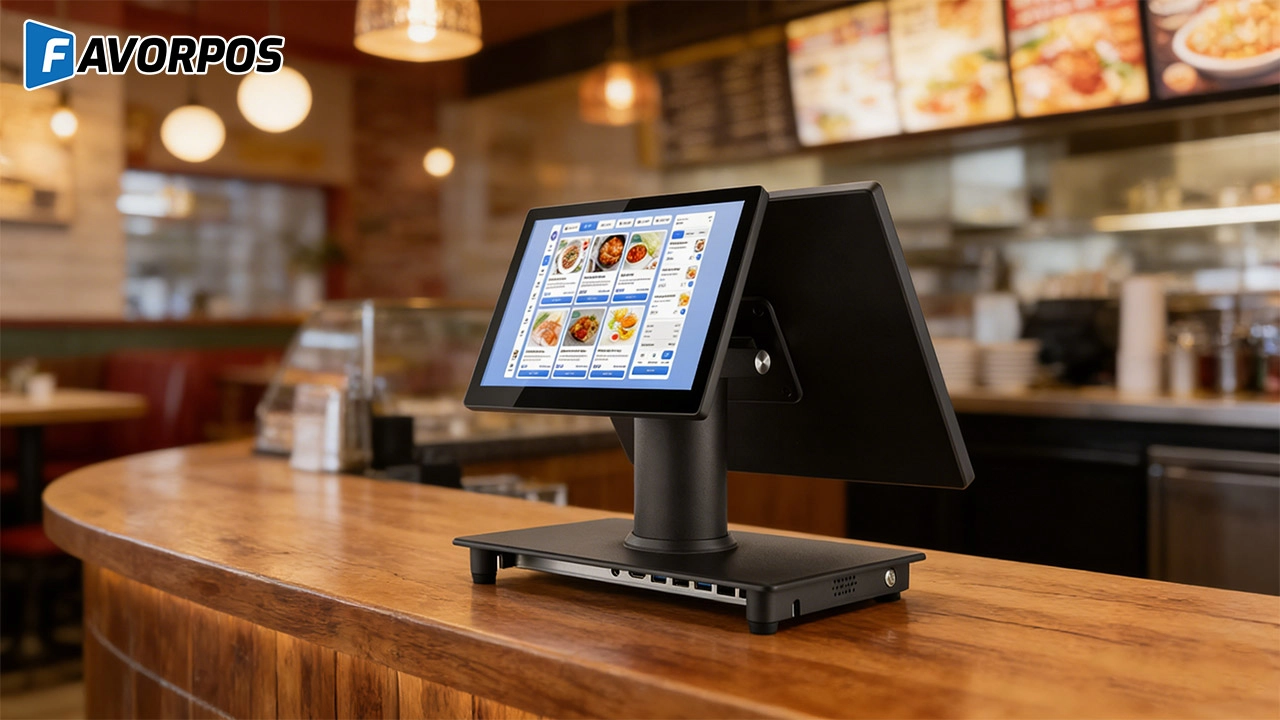
A Smarter Checkout Experience: The 15-Inch Dual-Screen POS Built for Modern Retail
For OEM
How do we start customizing POS machines?
To start customizing POS machines, please first contact our sales team with your needs and specifications. We will arrange a detailed consultation to understand your specific requirements and provide a design plan and quotation.
For Beauty and Wellness
How does your POS system integrate with online booking platforms?
Our POS system integrates seamlessly with online booking platforms, allowing customers to book appointments online and synchronize them with in-store appointments.
For Government and Public
Can your POS system handle various types of public sector payments?
Yes, our system is designed to handle a wide range of public sector payments, including fines, utility bills and service charges, ensuring secure and efficient processing.
What support is provided after deployment?
We provide 24/7 technical support, regular hardware updates, hardware maintenance, and training resources to ensure your POS system remains operating efficiently.
For Healthcare
Can the POS system be integrated with our existing EHR/EMR system?
Absolutely. Our POS solution is able to integrate with multiple electronic health record (EHR) and electronic medical record (EMR) systems to streamline operational processes.
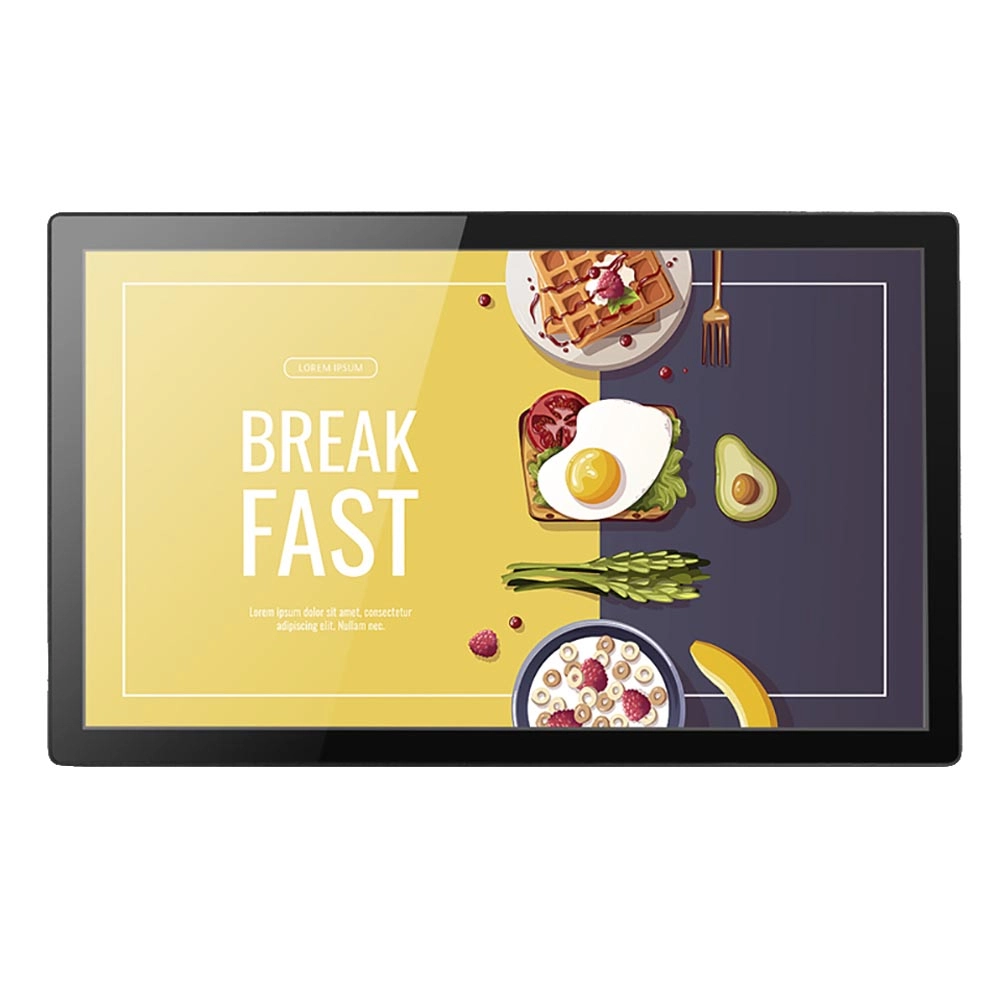
Wall Mount Cash Register POS 21.5 inch for Supermarket Touchscreen Windows Factory
Our sleek and modern wall-mounted POS system features a stunning 21.5-inch LED display, providing exceptional visibility and clarity for seamless customer interactions. The capacitive touchscreen ensures a highly responsive and intuitive user experience, perfect for fast-paced retail environments. With its space-saving wall-mounted design, this POS solution is ideal for optimizing floor space while maintaining a professional and contemporary appearance.
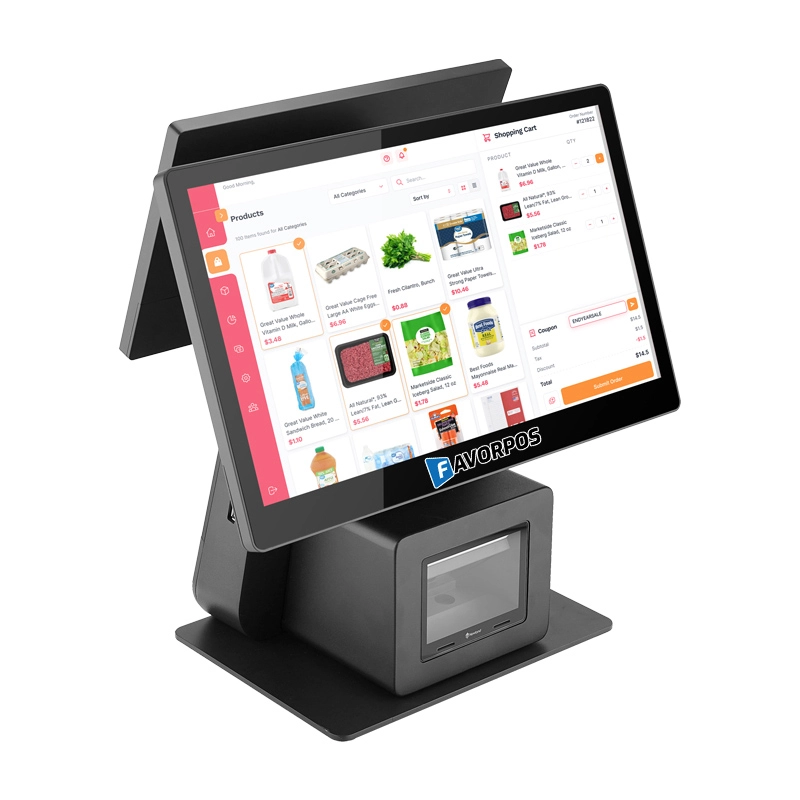
Dual Screen POS With Barcode Scanner Desktop POS Manufacturer POS Factory 15.6 11.6 Client Screen Optional
FAVORPOS: Your leading dual screen POS factory and manufacturer. Our desktop POS with barcode scanner offers 15.6/11.6 client screen options and OS flexibility. Get reliable, efficient dual screen POS with barcode scanner solutions directly from us.
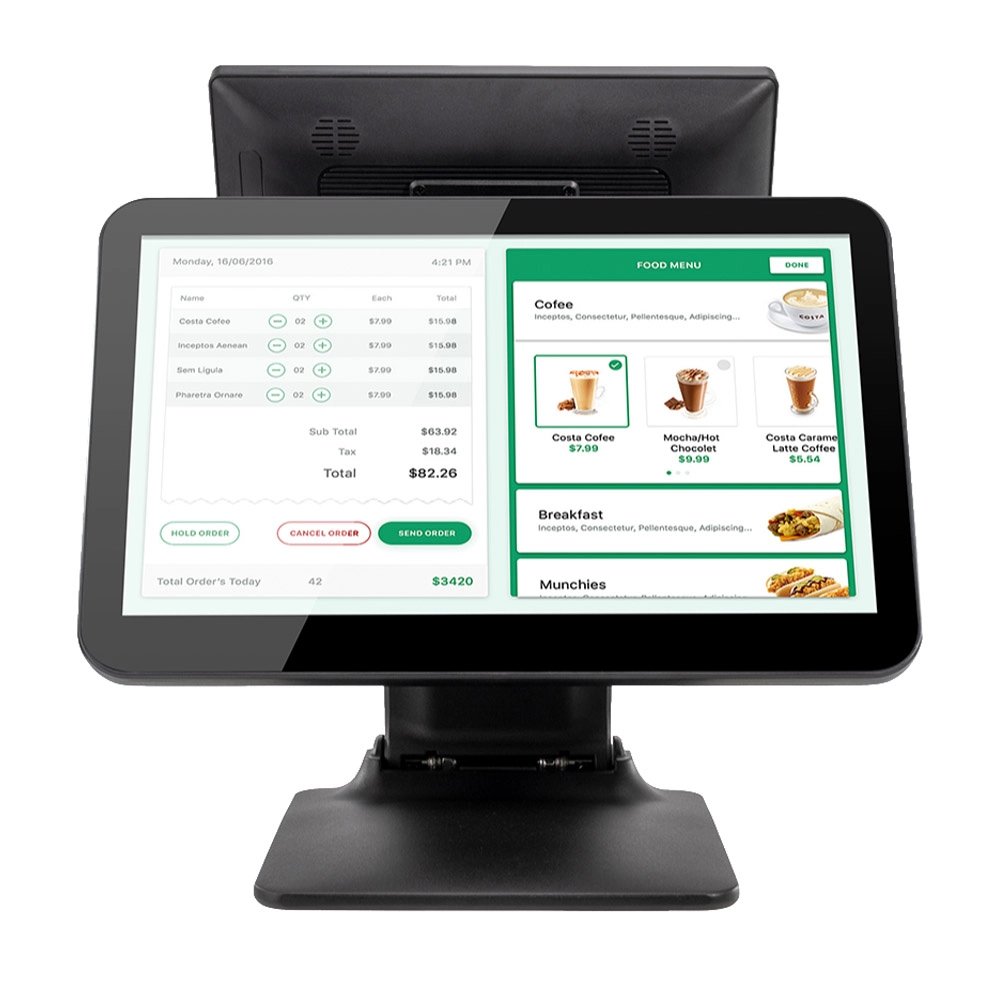
Foldable Touch Screen POS Cash Register 15.6'' Windows Supplier Aluminum
This innovative cash register combines portability with advanced functionality, making it ideal for retail environments. Its aluminum construction ensures durability while maintaining a lightweight design for easy transport and setup. The foldable feature allows for convenient storage and flexibility in various business settings.
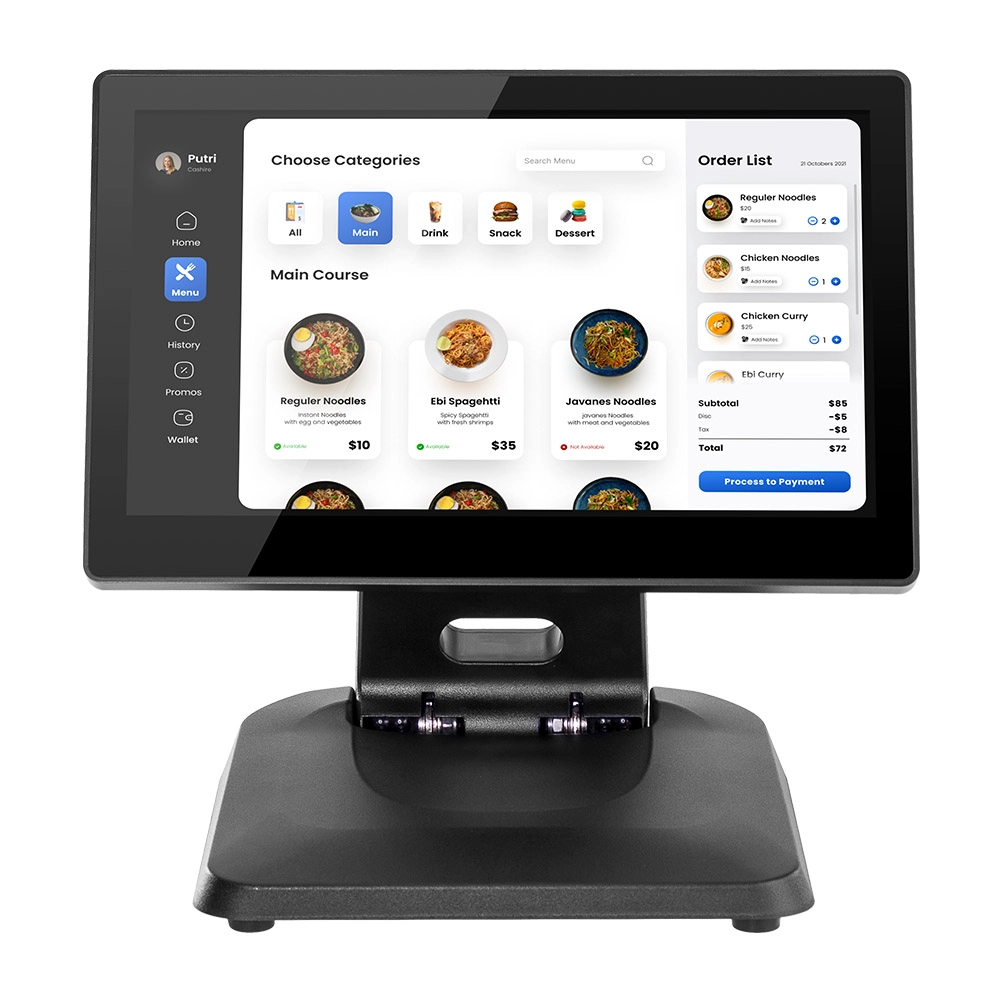
Factory 11.6'' Touch Screen POS Terminal Android Windows
The Factory 11.6'' Touch Screen POS Terminal is a versatile solution that supports both Android and Windows operating systems. Designed for durability and efficiency, this terminal is perfect for various retail environments. Its compact size and responsive touch screen enhance customer interactions, making transactions quick and seamless.
Get in touch
Interested in becoming a POS system dealer? Contact us for more information and start the process of joining our dealer network.
We look forward to working with you to expand the market together.


Copyright © 2025 Favorpos All Rights Reserved.
